

Adding friends in Forza Horizon 5 sounds like it should be simple. And sometimes it is. But the moment you mix PS5, Xbox, and PC into the same friend group, it can get weirdly… indirect.
This article is the “do this, then this” version. It’s focused on the real friction points: where to find the right menus, when you should use Add MSA Friend, and why convoys are basically the glue that holds cross-platform play together. If you want the big-picture answer first (the “does this even work?” question), the pillar guide is forza horizon 5 cross platform breaks it down in plain language.
What “cross-platform friends” means in FH5
FH5 supports playing together across Xbox consoles, PC, and PS5, but “friends” don’t always behave like your console’s normal friends list. The official Forza support guidance explains that when you’re trying to friend someone on a different platform, you’ll add them through your linked Microsoft account using the in-game option called Add MSA Friend.
In other words: same platform friends can be handled through your platform profile, but the cross-platform layer runs through Microsoft account identity and your Xbox gamertag.
A quick gut-check before you start
- Both players should have online play unlocked (new accounts sometimes still need to complete intro content before multiplayer behaves normally).
- Everyone should be connected to the internet and in Horizon Life when you’re actually trying to invite and join.
- On PS5, cross-play should be enabled in-game (it’s usually on by default, but it can be disabled).
If you keep hitting odd errors (missing friend, invite never arrives, stuck joining), the troubleshooting checklist in FH5 cross-play not working is a good companion piece.

Step 1: PS5 players must link a Microsoft account
If you’re on PS5, the PS5 FAQ is clear: you need to link a Microsoft account in addition to your PSN account in order to play Forza Horizon 5 on PS5. That linking process begins the first time you start the game.
One detail that catches people off guard (and honestly, it’s worth slowing down for): the PS5 FAQ also says linking is title-by-title and “permanent” in the sense that even if you unlink, you’re constrained to relinking only the originally linked Microsoft account for FH5. If the household has multiple players or you’ve got more than one Microsoft account floating around, it’s smart to read the longer explanation in Forza Horizon 5 PS5 Microsoft account linking before clicking through the prompts too fast.
Step 2: Add friends the right way (same platform vs different platform)
The official support article splits friend-adding into two cases. That’s helpful, because it stops you from trying the “wrong” method for ten minutes and assuming the game is broken.
If you and your friend are on the same platform
Use the Player Actions menu, then choose Show Player Profile. The Forza support guide explains this opens the player profile outside the game, where you add them as a friend on the platform you use.
This is the straightforward path: PS5-to-PS5 through PSN, Xbox-to-Xbox through Xbox, and PC-to-PC depending on how you’re connected.
If you and your friend are on different platforms (the key step)
Use the Player Actions menu, then choose Add MSA Friend. The official guidance says this adds them as a friend on your linked Microsoft account, which lets you be in-game friends via Xbox gamertag regardless of platform.
It’s slightly unintuitive the first time. But once you accept that FH5 is using Microsoft identity as the shared “bridge,” it starts to make sense.
Where to find Player Actions (PS5 vs Xbox/PC)
You don’t need to memorize this forever, but it helps to see it written out once.
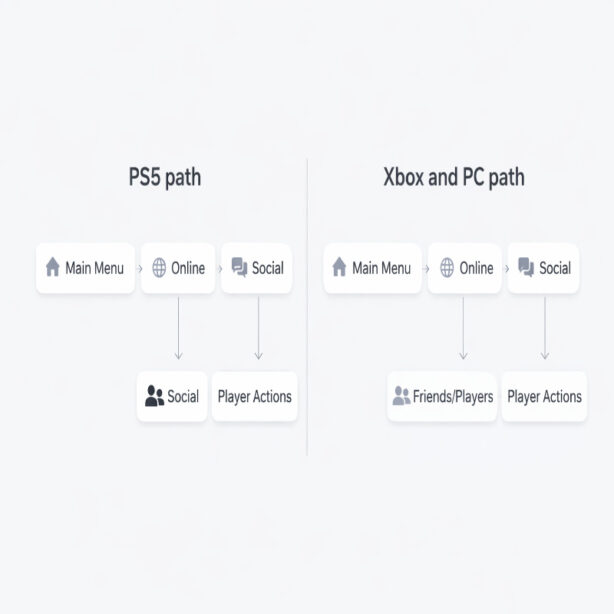
PS5 path
- Main Menu > Online > Social
- Select a player name to open Player Actions
- Choose Show Player Profile (same platform) or Add MSA Friend (different platform)
Xbox and PC path
- Main Menu > Online > Friends/Players
- Select a player name to open Player Actions
- Choose Show Player Profile (same platform) or Add MSA Friend (different platform)
If you’re thinking, “Okay, but what if I don’t have the player’s name in my Social list yet?” — that’s normal. In that case, the convoy invite flow (next section) is often the easiest way to pull people into the same space, then add them from the player list once you see them.
Step 3: Create a convoy (cross-platform play usually starts here)
FH5 is very convoy-driven. The official Forza support steps for cross-play basically treat “create a convoy and invite” as the default method of starting cross-platform multiplayer.
This is also where the process starts feeling “normal.” Once you’re both in the same convoy, staying together and hopping into events is much smoother.
PS5: invite friends on Xbox or Steam/PC
The official support article lists the requirements and flow for PS5 players inviting cross-platform friends. Make sure you:
- Are connected to the internet
- Have an active PlayStation Plus subscription
- Are in Horizon Life mode
Then do this:
- Go to the Online tab.
- Press the Convoy button.
- Select Create a Convoy.
- Select Friends Only.
- Invite from the list of your PlayStation and cross-platform friends.
A small but genuinely useful detail from the same support doc: while leading a convoy on PS5, you can press the Triangle button in the Pause Menu to view/manage the convoy, add more players, or adjust privacy settings. It’s easy to miss, and it’s one of those “oh, that’s where it is” moments.
Xbox or PC (including Steam): invite friends on PS5
The official support steps for Xbox/PC to PS5 adds one important line that explains a lot of failed invites: your PS5 friend should have linked their PSN ID to a Microsoft account that has an Xbox profile provisioned on it. In practice, this means they completed Microsoft linking on PS5 and now have an Xbox-style identity the system can target.
- Make sure you’re connected to the internet and in Horizon Life mode.
- Go to Online > Convoy > Create a Convoy.
- Set privacy to Friends or Invite Only.
- Open the Xbox Guide (Xbox button) and go to the People tab.
- Select Find Someone.
- Search your friend’s Xbox Gamertag.
- Add them as a friend if needed.
- Return to Convoy > Invite Friends and invite them from your list.
The official guidance also notes two things that help you sanity-check: PS5 players show with a PlayStation icon in the friends list, and the PS5 player receives the invite through FH5’s in-game messaging while they’re actually playing FH5. So yes, if they’re not in-game, you might be “inviting” them into a void.
How to join your friend’s convoy (without overthinking it)
Once an invite is sent, joining is usually simple: accept the convoy invite, then let the game pull you into the session. If it doesn’t work right away, it’s often because one of you is still in the wrong mode (solo vs Horizon Life), or because the invite arrived while the other player was on a menu screen and didn’t notice it.
When it feels flaky, don’t immediately rebuild everything. Try the boring fixes first:
- Both players return to Horizon Life, then resend the convoy invite.
- Confirm convoy privacy isn’t blocking invites.
- On PS5, double-check cross-play is still enabled in Settings > Extras.
Common “friend add” issues (and what usually fixes them)
You can’t find your friend by gamertag
- Confirm you’re using the correct Xbox Gamertag tied to their linked Microsoft account (not their PSN name).
- Have the PS5 player re-check that their Microsoft account is linked correctly for FH5.
- Try meeting in the same session first (convoy invite), then add via Player Actions once you see each other in the player list.
Your friend is in your platform friends list, but not in FH5
- Same-platform friends still need to appear in-game; sometimes it takes a minute for FH5 social to populate.
- For cross-platform, confirm you used Add MSA Friend (not only PSN/Steam friends).
Invites aren’t showing up
- The official instructions note PS5 receives invites through in-game messaging while playing FH5, so make sure the PS5 player is actually in-game.
- Confirm PlayStation Plus is active on PS5 for online multiplayer.
- Make sure both players have completed the intro content to unlock online multiplayer.
A quick note on safety (blocking across platforms)
Not the most fun topic, but it matters: the Forza support guidance includes a “Block MSA” option in Player Actions, and it’s meant to stop unwanted interaction across the Microsoft-account layer (including convoy invites and surfacing of UGC in search). If you’re setting this up for younger players, it’s a good menu to know exists.
Conclusion
How to add cross-platform friends in Forza Horizon 5 mostly comes down to one concept: same platform friends work like you’d expect, but cross-platform friends should be added through Add MSA Friend, because FH5 uses Microsoft identity as the bridge. After that, convoys do the heavy lifting — create one, set privacy, invite, and you’re usually good.
If you still feel like you did everything right and it’s somehow not working, it’s probably not “you.” It’s usually a missing requirement (Horizon Life, intro not completed, PS Plus on PS5, cross-play toggle) or a naming mismatch (PSN name vs Xbox gamertag). The main guide at is forza horizon 5 cross platform is worth keeping open while you troubleshoot, just so you can quickly check the underlying rules without digging through menus again.