
How to Cast to Samsung Tv: The Complete Guide
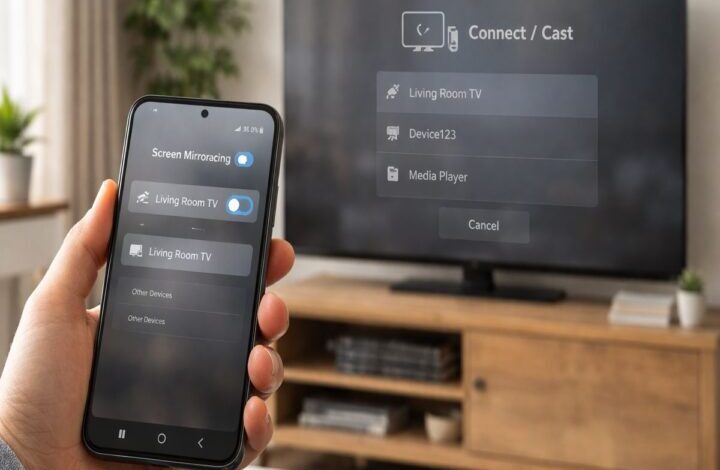
Learning how to cast to samsung tv sounds like it should be a one-tap thing. And sometimes it is. But in real life, there are a few different “casting” methods (and a couple of easy-to-miss settings) that decide whether you’re watching your video on the big screen in 30 seconds, or staring at a spinning icon wondering what you did wrong.
This guide is meant to be the page you land on when you just want it to work. We’ll cover casting versus screen mirroring, how to cast from Android and iPhone, how to connect a laptop, what to do when your Samsung TV doesn’t show up, and the simple “older TV” workaround that saves people a lot of time.
Before you start (the boring checks that matter)
I know, nobody loves prerequisite checklists. Still, these three things solve a surprising number of problems.
- Use the same Wi‑Fi network on both devices (your phone/tablet/PC and the TV). Screen mirroring and casting generally require both devices to be on the same Wi‑Fi network.
- Expect a prompt on the TV (a permission request or a PIN). If you ignore it, the connection can look like it “failed,” when it’s really just waiting for approval.
- Know your TV’s limits. Some features depend on your TV model and software version, so a menu label might not match your exact screen.
If you already tried everything and your TV doesn’t appear at all, jump to our troubleshooting guide: Samsung TV not showing up when casting.
How to cast to samsung tv (start here)
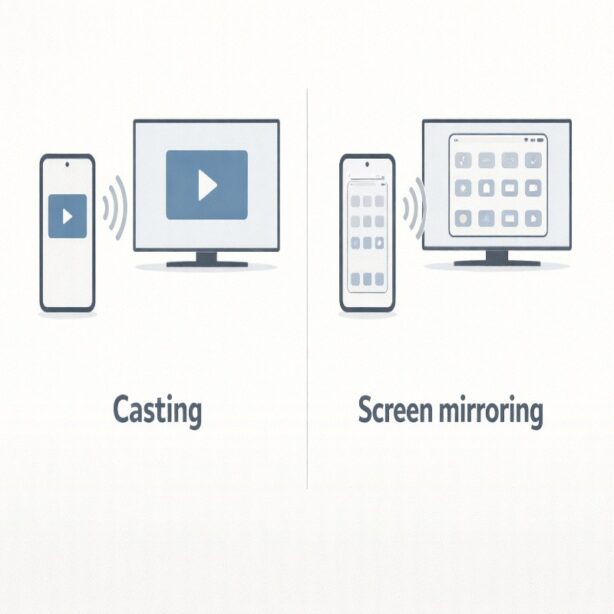
Let’s clear up one point that trips people up: “cast” and “mirror” get used interchangeably, but they’re not the same thing.
Screen mirroring shows your entire phone screen on the TV—every swipe, every app switch, even notifications. Casting is more like using your phone as a remote control; the video plays on the TV, and you can often keep using your phone without interrupting playback.
Samsung’s official guidance is that you can cast/mirror to many Samsung TVs by using Smart View (built-in on many Galaxy devices) or the SmartThings app, as long as both devices are on the same Wi‑Fi network.
Quick method: cast from a Samsung phone with Smart View
This is the “I just want my screen on the TV” option, and it’s usually the fastest.
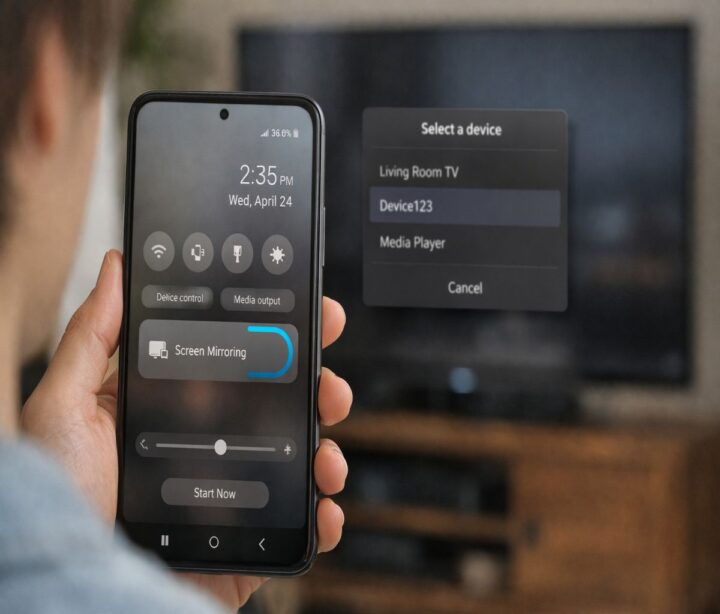
- On your Galaxy phone or tablet, swipe down to open Quick settings.
- Tap Smart View. (If you don’t see it, it may be hidden in your Quick settings tiles—annoying, but common.)
- Select your Samsung TV from the list.
- Tap Start now. If you’re prompted for a PIN or permission, follow what your TV shows.
- To stop, tap Smart View again on your phone and choose Disconnect.
A small note that feels obvious only after you’ve been burned: mirroring is great for photos, browsing, or showing an app demo. For Netflix/YouTube, casting inside the app can be smoother, because the TV plays the stream directly.
Backup method: cast from Android using the SmartThings app
If Smart View is missing on your device (Samsung says it isn’t available on every device), or if you prefer a more “device manager” approach, SmartThings is the next stop.
- Open the SmartThings app on your phone or tablet.
- Select your TV.
- Open More options (the three dots).
- Tap Mirror screen (Smart View), then tap Start now.
- Approve permission on the TV if asked.
If you’re thinking, “Why are there two methods that sound basically identical?”—you’re not wrong. In practice, Smart View from Quick settings is the easiest day-to-day shortcut, while SmartThings can help when you’re not seeing the TV show up in the quick list.
Casting vs screen mirroring (which one should you use?)
I’ll be honest: I used to treat these as the same thing. They aren’t, and once you pick the right one, the whole experience gets less frustrating.
Use casting when the app supports it (YouTube, Netflix, many music apps). The TV plays the content, your phone becomes the controller, and you can often lock your phone or switch apps without stopping the video.
Use screen mirroring when you need the whole screen: sharing a slideshow, showing a website, previewing camera footage, or walking someone through an app. Samsung describes screen mirroring as showing exactly what’s on your phone, and that includes navigation between apps.
One more subtle thing: mirroring can be more sensitive to Wi‑Fi quality and can feel laggier, especially in busy networks. If your goal is just watching a movie, try app casting first. If your goal is showing what you’re doing on your phone, mirroring is the right tool.
How to cast to Samsung TV from iPhone or iPad (AirPlay)
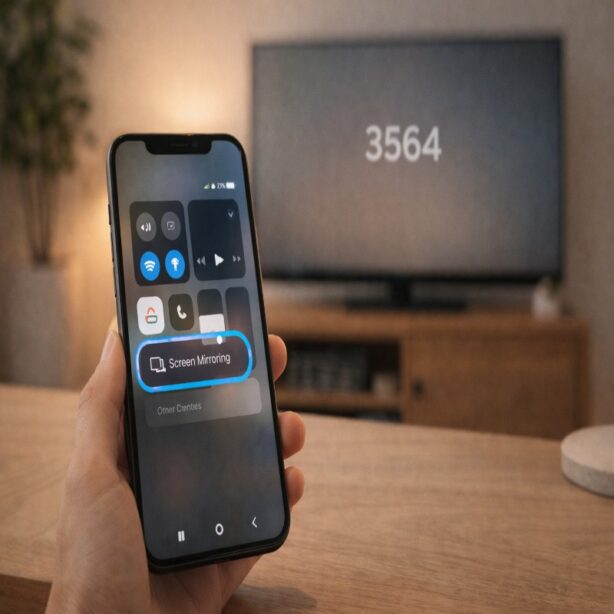
If you’re on iPhone or iPad, the mirroring feature you’ll use is Apple’s Screen Mirroring via AirPlay. Samsung’s instructions are straightforward: your iOS device and the Samsung TV need to be on the same Wi‑Fi network, then you start Screen Mirroring from Control Center.
Step-by-step: mirror iPhone to Samsung TV
- Confirm your iPhone/iPad and Samsung TV are on the same Wi‑Fi network.
- On your iPhone/iPad, open Control Center (swipe down from the top-right on most modern iPhones).
- Tap the Screen Mirroring icon.
- Select your TV’s name.
- If prompted, enter the AirPlay code shown on the TV.
- To stop mirroring, open Control Center again, tap Screen Mirroring, then tap Stop Mirroring.
If you want the deeper iPhone-specific walkthrough (including what to do when AirPlay is missing), we keep it here: mirror iPhone to Samsung TV.
Turn on AirPlay on your Samsung TV (if needed)
Sometimes the TV is compatible, but AirPlay is toggled off. Samsung’s guidance is to enable it in the TV settings:
- On your Samsung TV, go to Settings.
- Select All Settings.
- Select Connections.
- Select Apple AirPlay Settings.
- Turn AirPlay on.
If you don’t see Apple AirPlay Settings at all, it may mean your TV model doesn’t support it. That’s not you doing something wrong; it’s just a capability thing. In that case, scroll down to the “older TV” section for the simplest workaround.
How to cast from a Windows laptop to a Samsung TV
This is the part people often assume is complicated. But Samsung actually documents a pretty clean approach for Windows 10 and Windows 11: projecting your PC to a TV as a wireless display.
Two quick realities, though. First, your PC and TV should be on the same Wi‑Fi network. Second, not every Windows PC supports wireless display; Samsung suggests checking by pressing the Windows key + P and seeing whether you have a “Connect to a wireless display” option.
Windows 10/11: project to Samsung TV (wireless display)
- On your PC, open Start and search for Bluetooth and other device settings.
- Select Add device (or Add Bluetooth or other device).
- Choose Wireless display or dock.
- Select your Samsung TV when it appears.
- If prompted, choose Allow on your TV.
When you’re done, Samsung’s steps to disconnect are basically to return to your device list in Bluetooth & other device settings and remove the TV device.
If you want the laptop-specific version of this guide (including Mac options and common “work Wi‑Fi” limitations), it’s here: cast from laptop to Samsung TV.
Common problems (and the fixes that actually help)
If casting feels flaky, you’re not alone. And yes, sometimes the fix is exactly what you’d expect—restart everything. But a few Samsung-specific notes are worth calling out because they explain why you can “almost” connect and still fail.
Your TV doesn’t appear in the device list
- Confirm both devices are on the same Wi‑Fi network (not guest Wi‑Fi on one device and main Wi‑Fi on the other).
- Open Smart View again (or SmartThings again) after turning the TV on; device discovery can be oddly timing-sensitive.
- Check that you didn’t deny the TV permission prompt earlier; Samsung notes you may need to allow access on the TV.
If you want a more thorough checklist (including VPN and router quirks), use this guide: Samsung TV not showing up when casting.
It connects, but the screen is black or keeps dropping
Start with the unglamorous stuff: restart the phone/tablet and TV, then try again. Samsung also suggests checking for software updates when mirroring is unreliable, because updates can include fixes.
Also, if you’re on a VPN, disconnect it and try again. Samsung specifically mentions VPN use can trigger mirroring errors.
The video lags (or audio is out of sync)
This is where picking “casting” instead of “mirroring” can help. If the app supports it, cast the video directly so your TV plays the stream, rather than having your phone re-broadcast everything live.
If you must mirror (presentations, browsing, demos), moving closer to the router or reducing Wi‑Fi congestion can make a noticeable difference. It’s not always your Samsung TV—it’s just physics and bandwidth.
Smart View is missing on my phone
Samsung notes Smart View isn’t available on every device. If you don’t see it, try SmartThings mirroring instead, or check whether Smart View is simply not added to Quick settings on your phone yet.
Older TV? Here’s the simplest workaround
If your Samsung TV isn’t a Smart TV (or it’s an older model that doesn’t support the connection method you need), wireless casting may not be possible in the “built-in” way people assume.
In practice, the clean workaround is to plug in a streaming device via HDMI (or use another external device). Samsung even notes that third-party casting devices can let you stream videos even if you don’t have a Smart TV.
And if you’re trying to make an older set feel modern overall—not just for casting—this guide is a helpful companion: how to convert a TV into a smart TV.
A quick “which method should I use?” cheat sheet
If you’re still deciding, this is the practical way I’d choose. Not perfect, but it’s close enough to get you unstuck.
- Galaxy / Android + want your whole screen: Smart View (Quick settings) or SmartThings → Mirror screen (Smart View).
- iPhone / iPad + want your whole screen: Control Center → Screen Mirroring (AirPlay), with AirPlay enabled on the TV.
- Windows laptop: Add device → Wireless display or dock, then allow on the TV.
- Just want to watch a show: use in-app casting if available, because it’s often smoother than mirroring.
Conclusion: make casting feel simple again
Once you understand the small distinction between casting and mirroring, how to cast to samsung tv becomes a lot less mysterious. Most of the time, it’s the same Wi‑Fi rule plus the right tool for your device: Smart View/SmartThings on Android, AirPlay Screen Mirroring on iPhone/iPad, or wireless display projection on Windows.
If you’re still stuck, don’t brute-force it. Use the troubleshooting checklist here: Samsung TV not showing up when casting, and if your TV is older, consider the HDMI streaming-device route that effectively upgrades the TV without a lot of drama.