
How to fix Outlook “Sorry we’re having trouble opening this items”?
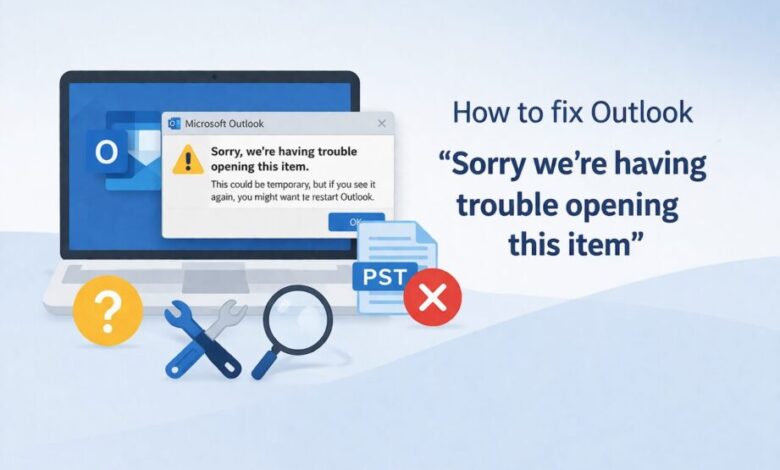
Microsoft Outlook users on various forums have mentioned that they are getting the following error message:
‘Sorry, we’re having trouble opening this item. This could be temporary, but if you see it again, you might want to restart Outlook’
This error can appear when a user attempts to launch the application, open an email, or read a message. While in some cases it may just be a small temporary glitch, but many times it appears due to a problem with your Outlook data file (PST) or a system setting issue. In this article, we will provide the most common reasons and some effective solutions to troubleshoot and resolve this issue.
Common Reasons for ‘Sorry, we’re having trouble opening this item’ Error in Outlook
Before moving to the solutions, let’s explore what typically leads to this error in Outlook:
- Incorrect View Settings
- Problem With The Internet Connection
- Conflicting With Antivirus Program Or Firewall
- Large Or Corrupt Email Attachments
- Outdated Outlook Version
- Damaged MS Office Installation
- Incompatible Or Faulty Add-Ins
- Folder Synchronization Issues
- Corrupt Outlook Profile
- Corrupted Outlook Data File (PST)
Methods to Fix ‘Sorry, we’re having trouble opening this item’ Error in Outlook
In some cases, restarting Outlook or your system may temporarily resolve the error. If it returns, follow the steps below to bfix it:
1. Clear Outlook’s View Settings
Outlook’s view settings control how your mailbox is displayed —such as filters, sorting, column layout, and reading pane options. Sometimes, these settings get corrupted due to crashes, add-in conflicts, etc. This may stop emails from appearing, freeze Outlook, or trigger the error “Sorry, we’re having trouble opening this item. You can reset Outlook’s view setting to restore Outlook’s default view and resolve the error. The steps are as follows:
- Press Windows + R to open the Run window
- Type Outlook.exe /cleanviews and click OK
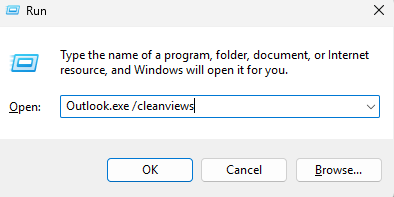
- This process will clean the view settings.
- Again, Press Windows + R key and type Outlook.exe /resetnavpane.
- Click OK
- This will reset the navigation pane.
- Restart your computer and then open Outlook.
2. Check Internet Connection and Synchronize Mail Folders
If you are using slow or unstable internet connection, then you may face the error while opening or viewing the mailbox items in Outlook. Make sure that you are using a good internet connection and until the synchronization to complete before accessing the mailbox items. You can view the synchronization status at the bottom of the window. If it shows “all folders are up to date”, it means sync is completed.
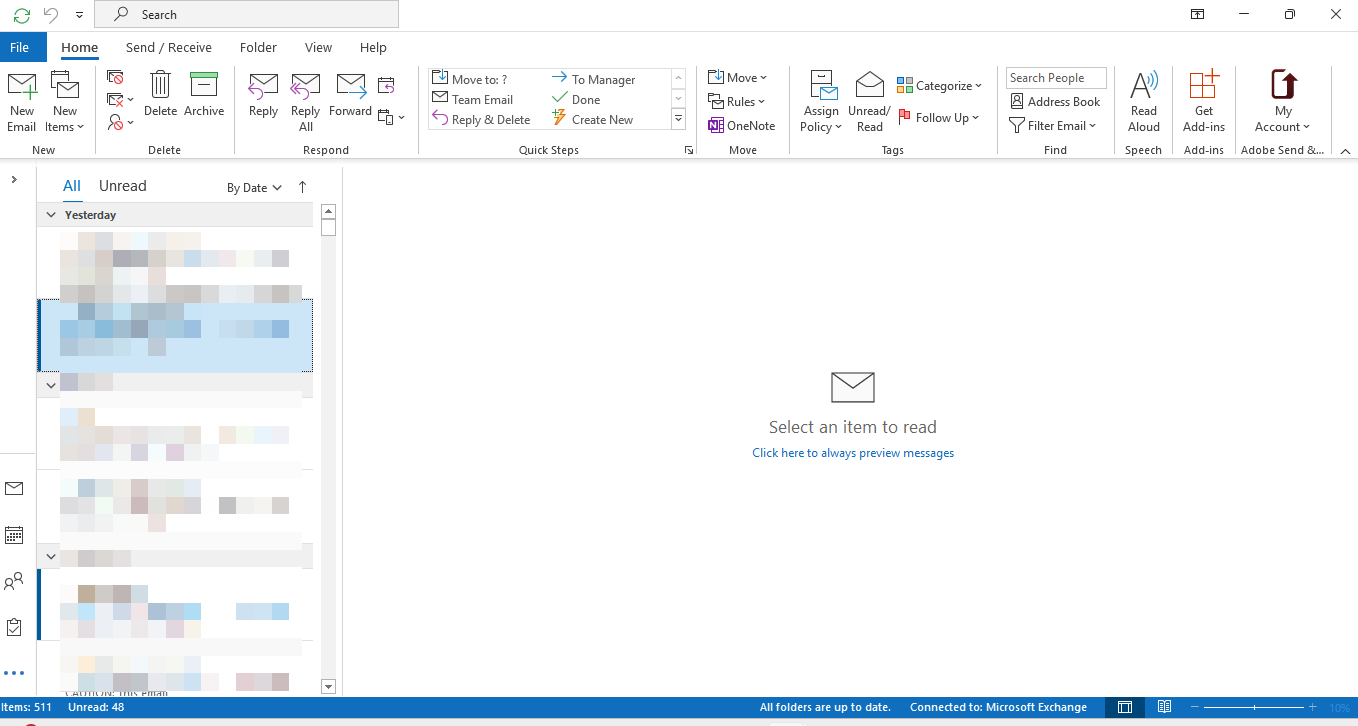
When your computer is connected to the internet or the mail server, sync takes place automatically. However, you can also synchronize and update all mail folders manually by clicking the option Update Folder under the Send/Receive tab in Outlook.
Once you update the mail folder, click on the email that you want to view. If you still face the issue the follow the next method.
3. Disable problematic add-ins
Faulty or incompatible add-ins may interfere with Outlook, which can cause several issues and prevent your mailbox sync process or accessing your mailbox items. You can open Outlook in safe mode to find and remove such add-ins.
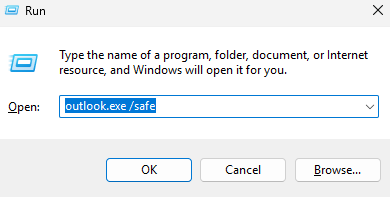
- Press Windows + R Keys.
- Type: outlook.exe /safe, click OK.
- Select Options from the left panel.
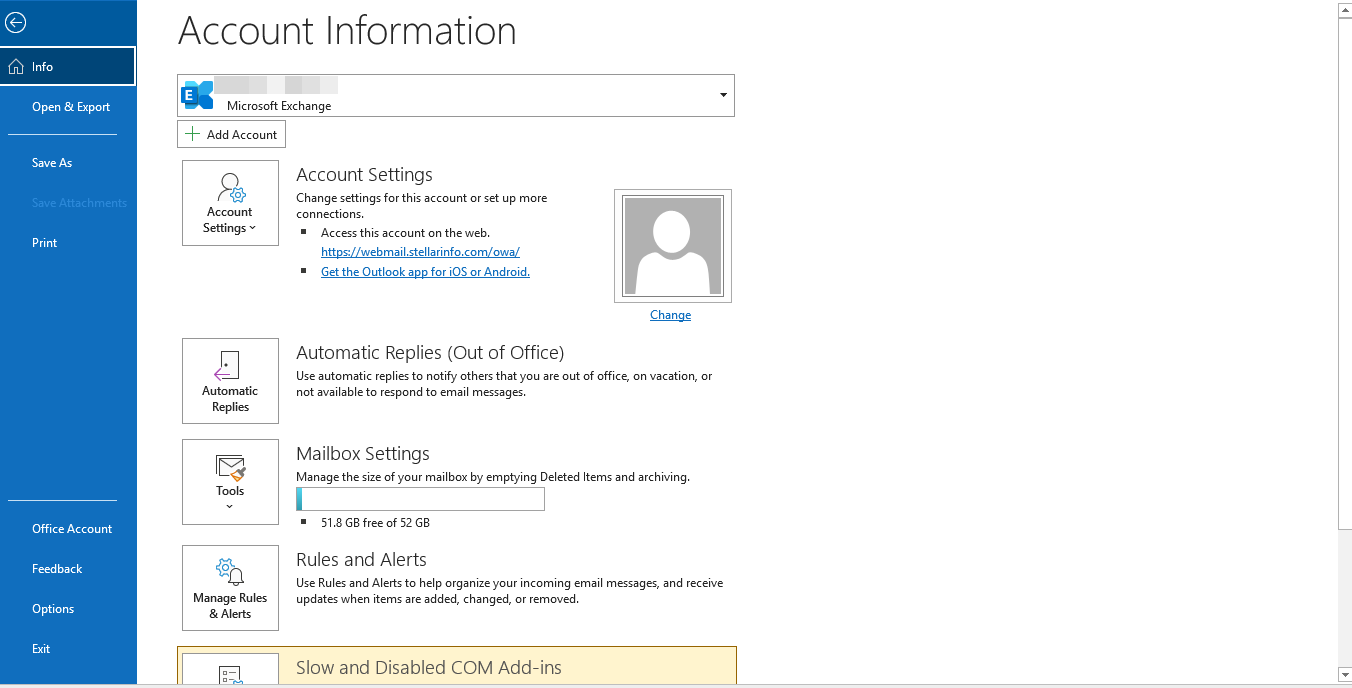
- Select Add-ins.
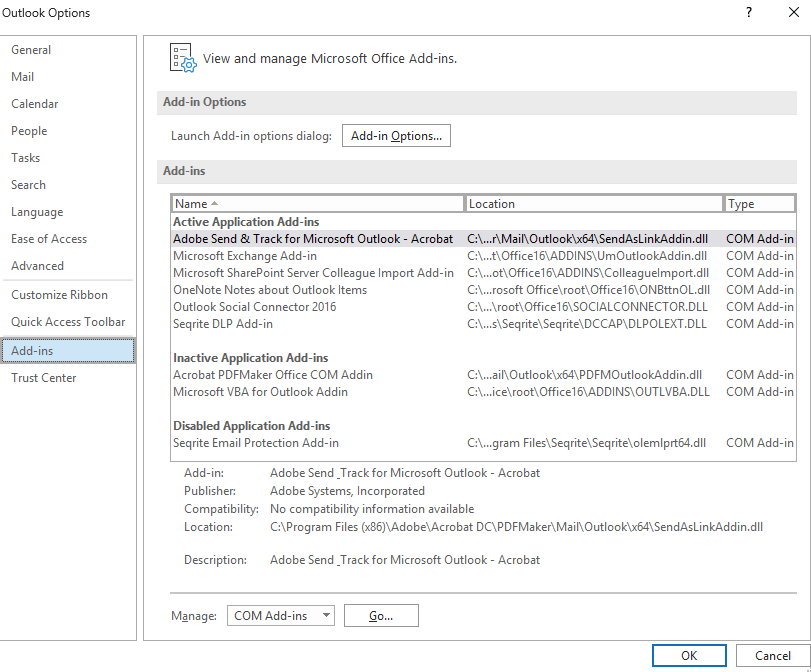
- From the dropdown, select COM Add-ins.
- Click Go. A list of all the installed Outlook add-ins will appear.
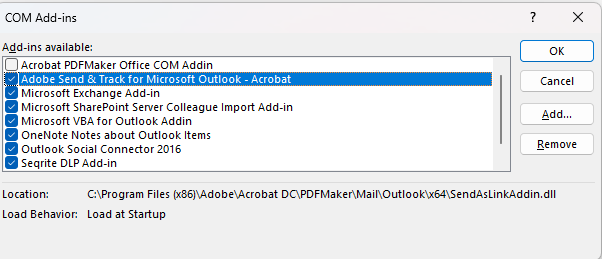
- Uncheck all add-ins to disable them.
- Click OK.
- Uncheck all add-ins to disable them. Click OK.
- Close Outlook completely and then open it normally.
To find the exact add-in that was causing the issue,
- Enable an add-in at a time.
- Restart Outlook.
- Repeat until the error occurs.
- The add-in you enabled last will be the faulty one.
- Remove the add-in permanently.
4. Update Outlook Application
The old version of Outlook may have some glitches or compatibility issues that stop it from functioning properly and can lead to errors like “Sorry we’re having trouble opening this item”. You can check and update Outlook to fix this error. Follow these steps to do so:
- Launch Outlook.
- Go to File, select Office Account > Update Option
- Choose the Update Now option.
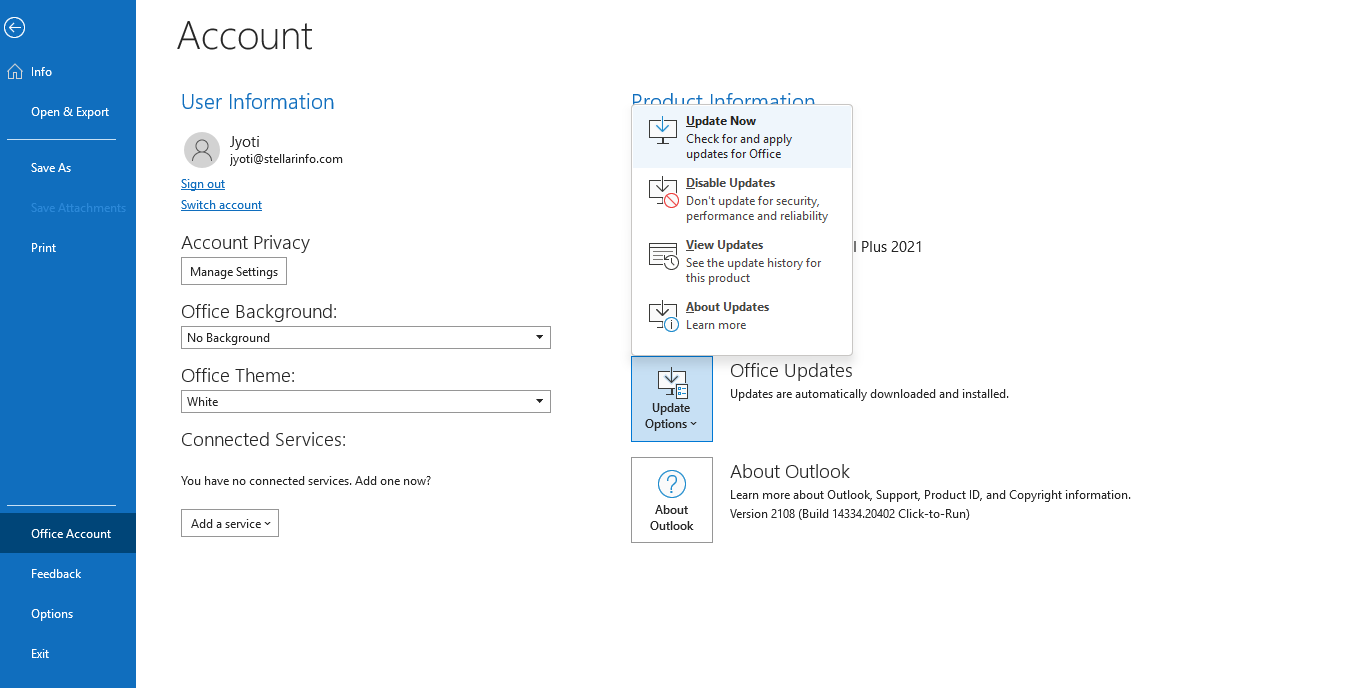
- If a new update is available, Outlook starts an update wizard to fetch the latest updates, and you are required to finish the wizard.
- Then restart the Computer and open Outlook.
5. Clear RoamCache Folder
Microsoft Outlook uses a temporary storage location called RoamCache Folder to improve Outlook performance. If a corrupted or problematic cache file is stored in this folder, then the error “Sorry, we’re having trouble opening this item” occurs. Clearing the folder can resolve the issue because it forces Outlook to create new, clean ones. Follow the steps below to do this:
- Press Windows + R keys.
- Type: %localappdata%\Microsoft\Outlook, and click OK or press Enter.
- Open RoamCache Folder and delete everything.
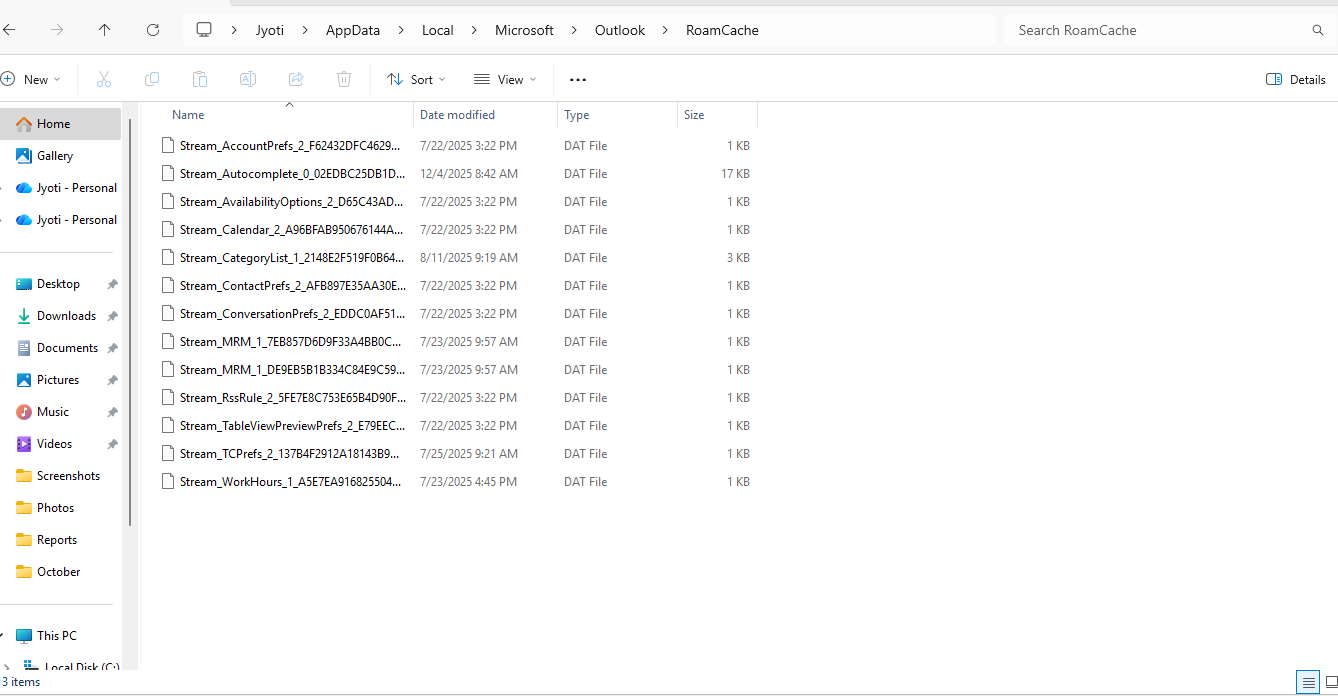
- Close and relaunch Outlook, wait a few seconds, then open the mail items you want to view.
6. Check and Disable Conflicting Apps
Security software or applications (e.g., antivirus, antimalware, firewall) can sometimes prevent Outlook from functioning properly. In such cases, you may temporarily disable the antivirus or security application, and if this resolves the error, add Outlook as an exception to the software.
7. Repair your Outlook
If the above-mentioned method does not resolve the issue, then there is a chance that the problem is in your Outlook or MS Office program. In such a situation, you can repair the Outlook or MS Office program to resolve the issue. Below are the steps to do this:
- Open Control Panel, go to Programs, and click Uninstall a program.
- Select Microsoft Office and click Change.
- Select the repair option and follow the wizard to repair the MS Office.
- After the repair is complete, restart the system and then open Outlook.
8. Create a new Outlook profile
Occasionally, Outlook issues arise from a corrupted or damaged profile, which can hinder task execution and generate errors. In such cases, repair the existing profile or create a new one.
Repairing a corrupt profile:
- Access Control Panel > User Accounts > Mail.
- Click Email Accounts, then select the Email tab.
- Highlight your account and click Repair.
- Complete the wizard and finish. Restart Outlook to see if the issue is resolved; if not, consider creating a new profile.
Creating a new profile:
- Open Control Panel > User Accounts > Mail.
- Choose Show Profiles.
- Click Add and then enter the new profile name. Click OK.
- In the Add Account wizard, enter the email ID and password. Click Next.
- Choose the new profile from the options and enable ‘Always use this profile’ or choose the ‘Prompt for a profile to be used’ option and then click OK.
- Restart Outlook.
9. Repair PST File
In case if your Outlook data file (PST) is corrupted, then it can lead to improper working of the Outlook and may result in error ‘sorry, we’re having trouble opening this item’. In that scenario, you can use Microsoft tool, ScanPST.exe, to repair your PST file and resolve this issue. This tool will help you to repair your corrupted and damaged Outlook data file without any hassle. Follow the steps below to run ScanPST:
- Make sure your Outlook is completely closed.
- Navigate to ScanPST. The default location is: C:\Program Files (x86)\Microsoft Office\root\OfficeXX
- To run ScanPST, double-click on it.
- Click on Browse.
- Select the PST file.
- Click Start to scan the file.
- After scanning, you will get a list of errors.
- Click on Repair.
- Wait for the “Repair Complete” message to appear.
- Click OK to finish the process.
Although ScanPST can repair corrupted PST files, it has some limitations. For example, it cannot repair severely corrupted files, it cannot handle very large PST files, and sometimes you need to run the tool multiple times, which increases the risk of data loss.
In all these situations, you can use a picture-perfect Outlook PST repair tool like Stellar Repair for Outlook. This tool repairs severely corrupted or damaged PST files and creates a new error-free PST file that you can import into Outlook to access your emails and fix the error.
Its user interface is very user-friendly, making it easy to use. It also allows you to save the recovered data in other formats such as PDF, EML, HTML, and more.
Conclusion
In this article, we have highlighted the reasons that may lead to the “Sorry, we’re having trouble opening this item” error in Outlook. Also, we have discussed solutions to help you and resolve this error. If your PST file is corrupted or damaged, then you can use ScanPST to repair your PST file, but if the file is severely corrupted, then you can use Stellar Repair for Outlook to repair the PST file and fix the issue. Once you repair the Outlook data file then you can import it into Outlook and access your mailbox data.