
Samsung TV Not Showing up When Casting: Fixes That Work
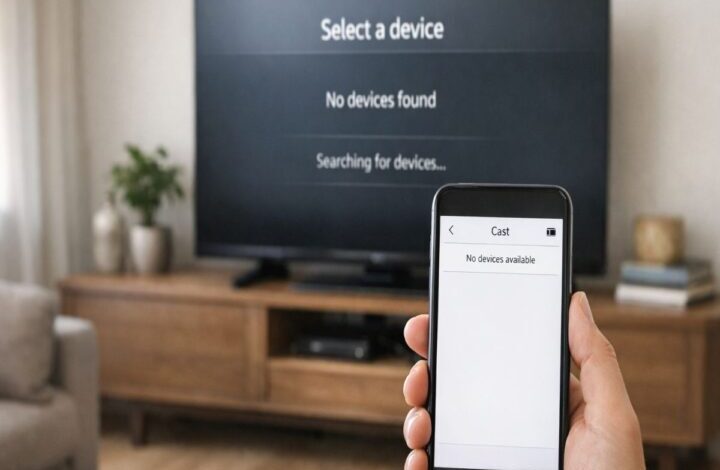
Samsung TV not showing up when casting is one of those problems that feels personal, even though it usually isn’t. One minute you’re ready to mirror your screen, the next minute your TV has vanished from the device list like it never existed.
We’ll go through the most reliable fixes first, in the order that saves the most time. And yes, we’ll talk about the slightly boring stuff (Wi‑Fi, permissions, updates), because Samsung’s own troubleshooting guidance leans heavily on those basics for a reason.
If you want to start from the main walkthrough and then come back here only if something breaks, bookmark our pillar guide on how to cast to samsung tv.
Quick check: are you casting or screen mirroring?
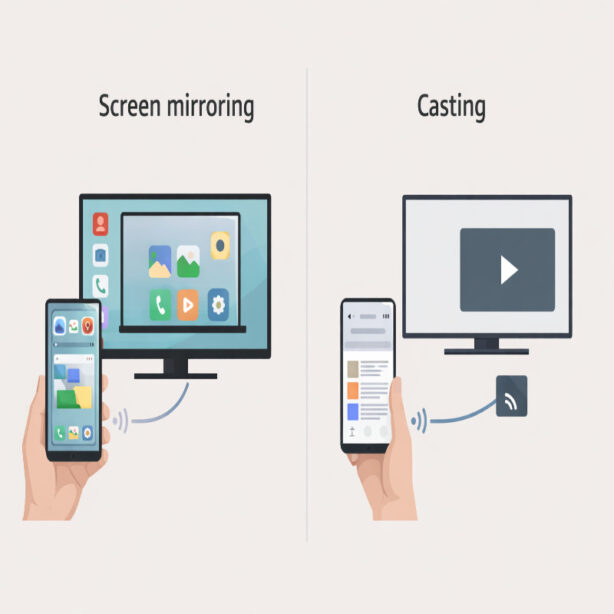
This sounds like a philosophical question, but it’s practical. Samsung points out that screen mirroring shows everything on your phone on the TV, while casting is more like using your phone as a remote control for an app like YouTube or Netflix.
When people say “my TV isn’t showing up,” they’re often trying to screen mirror via Smart View (or SmartThings) and expecting it to behave like in-app casting. The fixes overlap, but they’re not identical, so it helps to know which path you’re on.
Fix #1: Confirm both devices are on the same Wi‑Fi
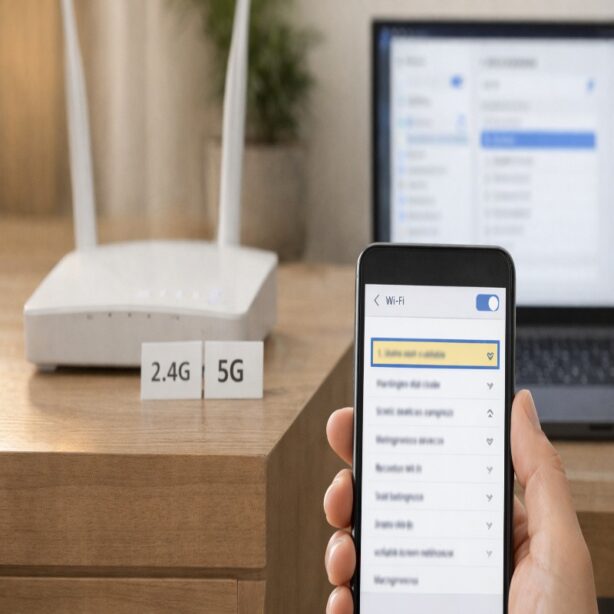
This is the most common culprit, and it’s also the easiest one to miss. Samsung states that your phone or tablet must be on the same Wi‑Fi network as the TV for Smart View / screen mirroring to work.
Do a quick double-check:
- On the TV: open Network settings and confirm the Wi‑Fi name (SSID).
- On your phone/tablet: open Wi‑Fi settings and confirm you’re on that same network.
- If your router has both 2.4 GHz and 5 GHz networks with different names, make sure you didn’t split devices across them.
It’s also worth watching out for “Guest Wi‑Fi.” Guest networks sometimes isolate devices from each other, which can make your TV invisible even though internet works fine.
Fix #2: Disconnect your VPN (yes, really)
If you use a VPN, try turning it off temporarily. Samsung’s support guidance specifically notes that if a VPN setting error occurs, you should disconnect from the VPN and try again.
This can feel a bit random the first time you run into it. But it’s consistent enough that I now check it early, before I start changing a bunch of other settings that I’ll later forget to undo.
Fix #3: Make sure you didn’t miss the TV permission prompt
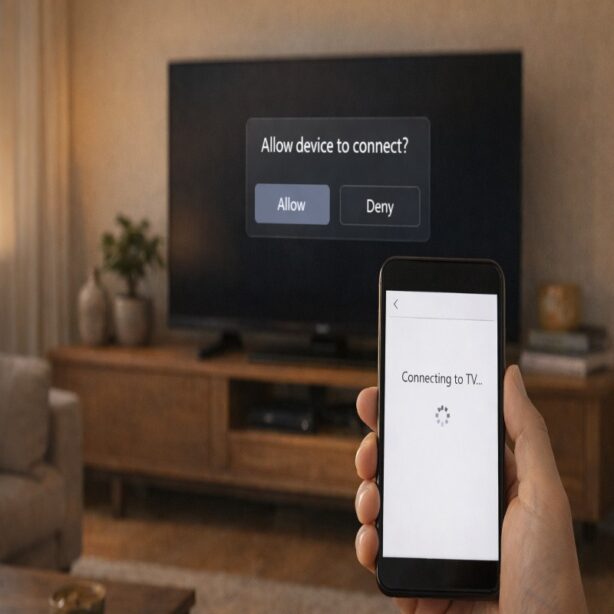
Sometimes your Samsung TV is showing up, you tap it, and then… nothing. Or it “fails.” Samsung notes that some TVs require permission and you need to select Allow when the prompt appears on the TV.
If you’re using Smart View:
- Swipe down to open Quick settings.
- Tap Smart View, select the TV, then tap Start now if prompted.
- Look at the TV screen and approve the connection (PIN or Allow prompt).
If you tend to tap quickly and look back at your phone, you might genuinely miss that TV prompt. It happens.
Fix #4: Restart the TV and your phone/tablet (the “unsexy” reset)
Restarting sounds like advice from 2006, but Samsung’s troubleshooting guidance for Smart View problems still includes rebooting both the TV and the mobile device as a core step.
Samsung also explains a common way to reboot many Samsung TVs: press and hold the Power button on the remote until you see the Samsung logo, or unplug the TV briefly and plug it back in. On your phone/tablet, do a normal restart and then try Smart View again.
If you’re trying to cast a presentation for a meeting, this is the step that feels most annoying. It’s also, frustratingly, the step that often works.
Fix #5: Check for software updates on the TV
When your Samsung TV is discoverable but unreliable (or not discoverable at all), outdated firmware can be part of it. Samsung advises keeping the TV’s software up to date and checking for available software updates from the TV’s Settings menu.
I wouldn’t update in the middle of something time-sensitive if you can avoid it. But if this problem has been recurring, a quick update check is worth doing once, just to rule it out.
Fix #6: Try SmartThings if Smart View is acting weird
Samsung explains that you can also mirror your device to a TV using the SmartThings app: select your TV, open More options, and choose Mirror screen (Smart View), then tap Start now.
In real life, Smart View from Quick settings is the simplest route. But if the TV won’t appear in Smart View, SmartThings sometimes “finds” it more reliably—especially if you’ve already added the TV to your SmartThings account.
Once you get it working again, you can go back to the main flow in our how to cast to samsung tv guide and continue from the device-specific steps.
Fix #7: Your TV shows up, but the picture is small (or the layout looks off)
This one is sneaky because it feels like a connection problem, but it’s really a display setting. Samsung notes that if the mirrored image looks small, you can adjust the aspect ratio inside Smart View settings (Smart View icon, then More options, then Settings, then Phone aspect ratio).
If your TV is widescreen (most are), a 16:9 option typically looks the most natural. If you’re mirroring a phone app that’s built for portrait, it still might not be perfect—and that’s not a failure, it’s just the shape of the content.
Fix #8: DRM content may not mirror (it’s not always a bug)
If your TV appears and mirroring “works,” but a specific video shows a black screen, the issue might be content protection. Samsung notes that DRM-protected content cannot be mirrored.
When that happens, the workaround is usually to cast from within the app (if it supports casting), or watch using the TV’s native app instead of mirroring your phone’s playback screen.
Fix #9: AirPlay-specific issues (iPhone/iPad)
If you’re on iPhone or iPad, you’re typically using AirPlay for Screen Mirroring. Samsung’s guidance is that your iOS device and TV must be on the same Wi‑Fi network, and that you may need to enter an AirPlay code shown on the TV.
If you’re stuck in that world—TV not appearing, code not showing, or AirPlay settings missing—follow our dedicated walkthrough: mirror iPhone to Samsung TV.
Fix #10: If your TV isn’t smart (or it’s too old), don’t force it
If your TV can’t connect to Wi‑Fi at all, or it doesn’t support the feature you’re trying to use, you can spend hours troubleshooting something that will never become stable. Samsung’s own casting explanation mentions using third-party casting devices like Chromecast or an Amazon Fire Stick, even if you don’t have a Smart TV.
That’s the practical “upgrade” path: add a streaming stick via HDMI and treat it as your casting target instead of the TV’s built-in system. If you want a broader overview of options, we also have a guide on how to convert a TV into a smart TV.
When to stop troubleshooting (and what to check next)
If you’ve confirmed the same Wi‑Fi network, handled permissions, disabled VPN, rebooted both devices, and checked updates, you’ve already covered the core items Samsung highlights in their Smart View and screen mirroring troubleshooting guidance.
At that point, I’d do one of two things: try a different phone/tablet (to isolate whether it’s the device), or switch to the HDMI streaming-device approach (to isolate whether it’s the TV/network environment). It’s not as “pure” as native casting, but it is often more predictable.
Conclusion
If your Samsung TV not showing up when casting problem is making you feel stuck, you’re usually one or two settings away from fixing it. Start with the same Wi‑Fi check, then handle VPN and permission prompts, then reboot and update if needed. And when you’re ready to get back to the main steps, return to our full how to cast to samsung tv guide.