
Err_Ssl_Protocol_Error Explained
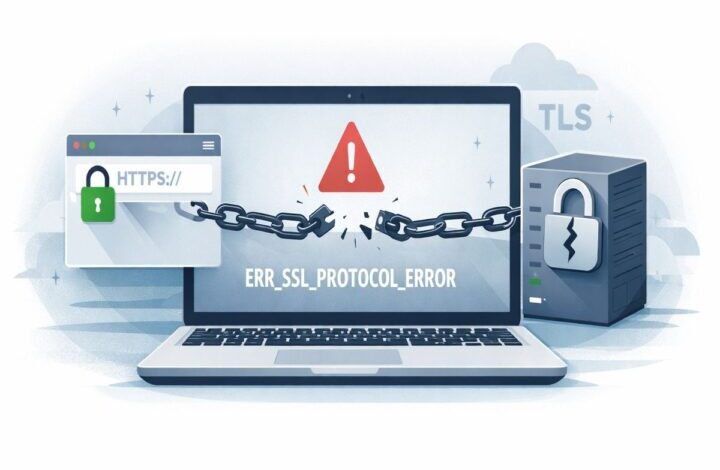
If you have run into err_ssl_protocol_error, you are not alone. It is one of those browser errors that looks more alarming than helpful, and honestly, that is part of the problem. The message sounds technical, but the issue is usually pretty simple underneath it: your browser tried to open a secure HTTPS connection, and something in that process failed.
Sometimes the problem is on your device. Sometimes it is on the website’s server. And every now and then, it is somewhere awkward in the middle, like a CDN, a proxy, antivirus software, or a public Wi-Fi network doing something it should not be doing. That is why this guide takes a broader view. We are not just listing random fixes. We are sorting the likely causes, showing how to test them, and helping you work out what is actually broken.
This article is written for a mixed audience because that is how people really search this topic. Some readers just want a page to load. Others are site owners, developers, or IT support staff trying to restore a website quickly before traffic and trust take a hit. So, yes, we will cover both sides.
Along the way, we will also point to a few related topics that deserve their own deeper treatment, including SSL certificate errors, browser-specific HTTPS issues, and more technical TLS handshake errors. That way, this guide can work as the main reference point without trying to force every edge case into one page.
What err_ssl_protocol_error means
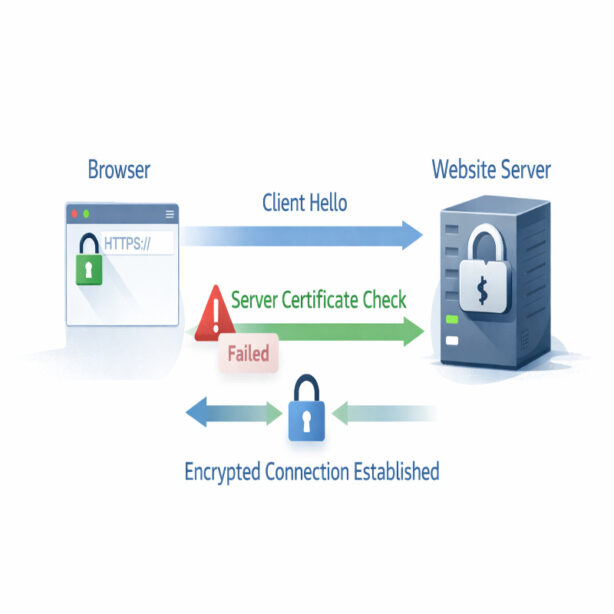
At a basic level, err_ssl_protocol_error means your browser could not establish a secure connection with a website over HTTPS. Before a secure page loads, the browser and server have to agree on how they will encrypt the connection. That process is often called the SSL or TLS handshake.
If that handshake fails, the browser stops the connection instead of taking a risk. In that sense, the error is not the danger. It is the warning that something about the connection is not safe enough, trusted enough, or technically compatible enough to continue.
You will usually see it in Google Chrome, but similar errors appear in Firefox, Edge, Safari, and mobile browsers too. The wording changes a little. The underlying issue, though, is usually the same: the secure connection could not be completed properly.
Why the secure handshake fails
This is where people often get tripped up. They assume “SSL error” always means the certificate expired. That can be true, sure, but it is not the whole picture. A secure connection can fail for several reasons, and some of them have nothing to do with an expired certificate at all.
Here are the most common causes:
- An expired, missing, or misconfigured SSL certificate.
- A certificate that does not match the domain name being visited.
- A broken certificate chain, where intermediate certificates are missing.
- Old TLS versions or weak cipher suites on the server.
- Browser cache, cookies, or stored SSL state causing conflicts.
- Antivirus, firewall, VPN, or proxy tools intercepting HTTPS traffic.
- Cloudflare or another CDN using SSL settings that do not match the origin server.
- Incorrect system date and time, which makes valid certificates look invalid.
- Redirect loops between HTTP and HTTPS.
- Public Wi-Fi or enterprise network filtering that interferes with encrypted traffic.
That mix is exactly why a good troubleshooting process matters. If you jump straight into server settings when the issue is just a wrong system clock, you waste time. Then again, if your certificate chain is broken and you keep clearing browser cache, you are not really fixing anything either.
Who this guide is for
This article is designed for three types of readers, because the search intent around err_ssl_protocol_error is broader than it first appears.
- Website visitors who just want to open a secure page.
- Website owners who need to stop the error from affecting users and SEO.
- Developers or technical support teams diagnosing TLS, certificate, or server issues.
If you are just trying to visit a website, you can start with the user-side fixes below. If you run the site or manage the infrastructure, skip ahead to the server-side diagnosis section. And if you are somewhere in between, which is probably most people, read the triage section first. It gives you the fastest way to tell where the problem actually lives.
Fast triage for err_ssl_protocol_error
Before changing settings, do a quick reality check. This step is easy to skip, but it saves a lot of time. I think it is probably the most underrated part of troubleshooting.
How to narrow down err_ssl_protocol_error quickly
- Try the website on another browser. If it works there, the issue is likely browser-specific.
- Try the same site on your phone using mobile data, not Wi-Fi. If it works on mobile data, your local network may be causing the problem.
- Try a different HTTPS website, like a bank or major news site. If many secure sites fail, the issue is probably on your device or network.
- Ask another person to test the same site from a different location. If they see the same error, the server or certificate is more likely at fault.
- Open the site with and without “www” if both versions exist. Domain mismatch issues can show up this way.
These quick tests help separate one-site problems from system-wide problems. That distinction matters because the next steps are completely different depending on what you find.
User-side fixes
If the issue appears to be on your device or network, work through these fixes in order. They start with the simplest options first, which is not always glamorous, but simple fixes solve a surprising number of cases.
Check your date and time
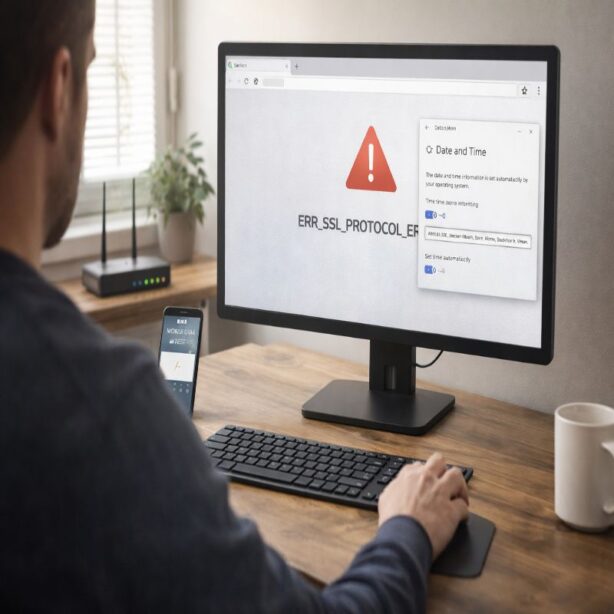
SSL certificates are time-sensitive. Your browser checks whether a certificate is currently valid based on your device clock. If your computer or phone has the wrong date, time, or time zone, a valid certificate can appear invalid.
On Windows, go to Date & Time settings and enable automatic time syncing. On macOS, open System Settings and make sure the date and time are set automatically. On mobile devices, look for the same automatic time option. Then restart the browser and test the site again.
Clear browser cache and cookies
Browsers store cached files, cookies, and old site data to speed things up. Usually that is helpful. Sometimes it is not. If a site changed its HTTPS configuration recently, stale browser data can cause conflicts.
In Chrome, open the browsing data settings, choose cached files and cookies, and clear them. In Firefox, Edge, and Safari, the same basic option exists under privacy or history settings. After clearing, fully close the browser and reopen it before testing the site again.
Clear SSL state
On Windows, the operating system stores SSL session information separately from your normal browser cache. If that stored state becomes corrupted, you can end up with connection problems even after clearing your browser.
Open Internet Options, go to the Content tab, and choose “Clear SSL state.” It is a small step, maybe a little hidden, but it can help when the error seems stubborn for no obvious reason.
Disable extensions temporarily
Browser extensions can interfere with secure connections, especially privacy tools, ad blockers, script blockers, and security add-ons. I would not assume they are the cause straight away, but they are worth testing.
Open an incognito or private window first. Since many extensions are disabled there by default, this is a quick way to check. If the site works in private mode, disable extensions one by one until you find the problem.
Pause antivirus, VPN, or proxy tools
Some antivirus programs inspect HTTPS traffic by acting as a middle layer between your browser and the website. In theory, that improves security. In practice, it can also break secure connections if the tool is outdated or misconfigured.
VPNs and proxies can cause similar issues, especially on work or school networks. Temporarily disable them, reload the site, and see whether the error disappears. If it does, the secure connection is being interrupted somewhere between your device and the site.
Switch networks
Public Wi-Fi networks, hotel Wi-Fi, airport Wi-Fi, and some office networks can interfere with HTTPS traffic. Captive portals are a common culprit. You think you are connected normally, but the network is trying to force a login page or inspect traffic in the background.
Try switching from Wi-Fi to mobile data, or from one Wi-Fi network to another. If the site loads normally after switching, the original network is likely the issue. That is not rare, actually.
Update your browser and operating system
Modern websites expect support for current TLS standards such as TLS 1.2 and TLS 1.3. If your browser or operating system is badly outdated, it may not support the protocols or cipher suites required by the server.
Update Chrome, Edge, Firefox, Safari, and your operating system to the latest available version. If the device is too old to support current security standards, some websites simply will not connect securely anymore.
When the problem is not on your device
Sometimes there is nothing meaningful a visitor can do. That is worth saying clearly because people often blame themselves for an issue they cannot fix. If the error appears on multiple devices, multiple networks, and multiple browsers, the problem is likely with the website or the infrastructure behind it.
In that case, the site owner needs to fix the certificate, TLS configuration, redirect logic, CDN settings, or server software. You can try again later, but repeatedly clearing cookies will not help if the site itself is misconfigured.
Site owner diagnosis
If this is your website, treat err_ssl_protocol_error as a real incident, not a cosmetic bug. Users may not be able to load the page at all, and search engines cannot reliably crawl pages that fail to establish a secure connection.
There is a practical order to follow here. You do not want to start editing server files blindly. First confirm the failure point, then verify the certificate, then move into protocol and infrastructure checks.
Start with an SSL server test
Use a reputable SSL/TLS testing tool to inspect your live domain. This will usually tell you whether the certificate is expired, whether the chain is incomplete, which TLS versions are enabled, and whether the server supports weak or outdated ciphers.
What you are looking for is not just a pass or fail result. You want specifics:
- Does the certificate match the domain?
- Is the certificate expired?
- Is the full chain installed correctly?
- Are TLS 1.2 and TLS 1.3 enabled?
- Are TLS 1.0 or TLS 1.1 still active?
- Are there handshake failures tied to the CDN or origin server?
This step gives you evidence. Without it, troubleshooting can turn into guesswork very quickly.
Check certificate validity
The certificate itself is still the first place to look. Confirm the expiration date, issuer, covered domains, and whether the certificate includes the exact hostname users are visiting. If your site serves both example.com and www.example.com, the certificate should support both unless you are redirecting one cleanly to the other.
Also check for subject alternative names, often called SANs. This matters when one certificate covers multiple hostnames. A mismatch there can cause the browser to reject the secure connection even if the certificate itself looks otherwise fine.
If you want a deeper breakdown of certificate-specific issues, that belongs naturally with a more focused article on SSL certificate errors. It is a related topic, but not exactly the same thing.
Verify the certificate chain
A lot of site owners overlook intermediate certificates. The browser does not just trust your site certificate in isolation. It wants a complete chain leading back to a trusted certificate authority.
If the intermediate certificates are missing or misinstalled, some browsers and devices will fail the connection. Others may still work, which makes the issue harder to spot because it looks inconsistent. That inconsistency is often the clue.
Review TLS protocol support
Despite the name of this error, the root issue is often TLS rather than “SSL” in the old sense. Modern browsers expect recent protocol support. Servers that still allow only very old configurations may fail the handshake before the page ever loads.
Your server should support TLS 1.2 and, ideally, TLS 1.3. Old protocol versions like SSLv3, TLS 1.0, and TLS 1.1 should no longer be relied on. In fact, relying on them is a pretty good way to create compatibility problems with modern browsers.
Check cipher compatibility
The browser and server also need to agree on a cipher suite, which is the encryption method used for the connection. If your server only offers weak, outdated, or unusual ciphers, the browser may refuse to continue.
This issue overlaps with TLS handshake errors more broadly. Sometimes the certificate is perfectly valid, but the handshake still fails because the browser and server cannot agree on protocol rules or encryption options.
Inspect redirects and canonical HTTPS behavior
Incorrect redirects are another common cause. For example, the site may redirect HTTP to HTTPS at the web server level, while a CDN or plugin is trying to force a different rule at the same time. That can create redirect loops or protocol confusion.
Check whether:
- HTTP redirects cleanly to HTTPS.
- There is no loop between www and non-www versions.
- The origin server and CDN agree on the expected protocol.
- Your CMS settings use the correct HTTPS site URL.
Even small redirect mistakes can trigger bigger secure connection failures, especially when several layers are involved.
Review CDN and reverse proxy settings
If you use Cloudflare or another CDN, remember that there may be two secure connections involved: browser to CDN, and CDN to origin server. The front-end connection can look fine while the back-end one fails.
One classic issue is SSL mode mismatch. If the CDN expects a valid HTTPS connection to the origin server but the origin certificate is broken, expired, or missing, users may see err_ssl_protocol_error or related HTTPS failures. Flexible SSL modes can also create odd redirect behavior, so Full or Full Strict is generally the safer route when configured properly.

Check web server configuration
For Apache or Nginx, confirm that your SSL certificate file, private key, and full chain are all referenced correctly in the server config. Then test the configuration syntax before restarting the service.
You should also verify that the server is listening on port 443, that HTTPS virtual hosts are configured correctly, and that no old directives are forcing obsolete protocols or weak ciphers. These checks are not glamorous, I know, but this is often where the real answer lives.
Server-side fix workflow
If you need a more direct checklist, this is the order I would use for most website incidents involving err_ssl_protocol_error:
- Run a full SSL/TLS test against the live domain.
- Confirm the certificate is valid, current, and covers the right hostname.
- Install or reinstall the full certificate chain if needed.
- Verify that the private key matches the certificate.
- Enable TLS 1.2 and TLS 1.3, and remove reliance on outdated protocol versions.
- Review supported cipher suites.
- Check HTTP to HTTPS redirect rules and canonical hostname logic.
- Review CDN or reverse proxy SSL mode and origin certificate status.
- Test the configuration, reload the web server, and retest from multiple devices.
The key is to move from external validation to internal configuration, not the other way around. That keeps the process grounded in actual evidence instead of assumptions.
Browser-specific notes
The exact wording of this problem changes depending on the browser. Chrome often shows err_ssl_protocol_error directly, while other browsers use more general secure connection messages.
- Chrome: err_ssl_protocol_error
- Firefox: Secure Connection Failed
- Edge: This site cannot provide a secure connection, or a similar message
- Safari: Safari cannot open the page because it could not establish a secure connection
The labels differ, but the underlying troubleshooting logic is broadly similar. That said, browser-specific behavior still matters, which is why a separate cluster article on browser-side and Chrome HTTPS errors makes sense within your content hub.
Mobile and app-related cases
Mobile devices add a few extra variables. Android System WebView, old Chrome versions, restricted work profiles, and app-level embedded browsers can all cause secure connection issues that do not appear on desktop.
If a website works on desktop but fails inside a mobile app, test the same URL in the device’s full browser. If it works there, the problem may be with the app’s embedded web view, certificate handling, or operating system support. This is especially relevant on older Android devices.
Public Wi-Fi is also more likely to affect mobile users because phones switch between networks quickly and may hit captive portals or filtered hotspots without making the cause obvious. Sometimes the issue really is that mundane.
Localhost and staging environments
Developers often run into err_ssl_protocol_error on localhost, test subdomains, or staging environments. In those cases, the issue usually involves self-signed certificates, local trust settings, invalid hostnames, or a mismatch between expected and actual HTTPS setup.
If you are using a self-signed certificate locally, your browser may block the connection unless that certificate is trusted by the operating system. If the local environment redirects to HTTPS without a valid local cert, the browser will fail the handshake. And if a staging subdomain is using a production certificate that does not cover it, that will fail too.
This is one area where developers often know just enough to make things messy. I say that kindly. It happens.
How err_ssl_protocol_error affects SEO and trust
For site owners, this error is not just a technical nuisance. If users cannot load a secure page, conversions drop, bounce rates rise, and trust disappears quickly. Search engines also struggle to crawl and index pages that consistently fail during secure connection attempts.
HTTPS problems can interrupt user journeys at the worst possible moment, including login pages, checkout pages, and form submissions. That is bad for SEO, yes, but it is also bad for revenue and reputation. In a practical sense, trust damage often shows up before ranking damage does.
That is why this issue belongs in a broader website maintenance and security workflow, not as a one-off emergency fix. Certificate renewals, TLS configuration reviews, and monitoring should all be part of regular maintenance.
How to prevent it in the future
Once the immediate error is fixed, the next step is prevention. A secure site should not rely on memory, luck, or a last-minute renewal notice buried in someone’s inbox.
- Use automatic certificate renewal where possible.
- Monitor certificate expiration dates before they become urgent.
- Keep your web server, CMS, and plugins updated.
- Review CDN and origin SSL settings after infrastructure changes.
- Test staging and production environments separately.
- Verify redirect logic after domain or platform migrations.
- Retest TLS support after major server updates.
If your site is business-critical, add external monitoring for HTTPS health and certificate status. It sounds slightly excessive until the first outage happens. After that, it tends to feel very reasonable.
Common questions
Is err_ssl_protocol_error always caused by an expired certificate?
No. Expired certificates are common, but this error can also be caused by protocol mismatch, broken certificate chains, redirect problems, CDN conflicts, antivirus interception, and browser-side issues.
Can users fix err_ssl_protocol_error on their own?
Sometimes, yes. If the issue is caused by local cache, system time, extensions, antivirus software, or a problematic network, users can often resolve it themselves. If the website itself is misconfigured, only the site owner can fix it.
What is the difference between SSL and TLS here?
People still say “SSL” because it is familiar, but modern secure connections typically use TLS. The term err_ssl_protocol_error is just the browser label. In practice, most current diagnosis focuses on TLS settings, certificates, and handshake behavior.
Does this error happen only in Chrome?
No. Chrome uses this exact error name, but other browsers show similar secure connection failures with different wording.
Should I disable security tools permanently if they cause the error?
No. Use temporary disabling only as a test. If a security tool is causing the issue, update it, adjust its HTTPS scanning settings, or create a proper exception rather than leaving protection turned off.
Final thoughts on err_ssl_protocol_error
err_ssl_protocol_error is really a failed trust check between browser and server. Sometimes the fix is quick, like correcting your system clock or clearing browser data. Other times it points to a more serious issue with certificates, TLS support, redirects, or CDN configuration.
The important thing is not to treat every case the same way. Start by figuring out whether the problem is local or server-side, then work through the relevant fixes in a calm order. That tends to be faster, less frustrating, and a lot more effective than jumping straight into random settings.
As a pillar topic, err_ssl_protocol_error also opens the door to a useful cluster of related content around certificate issues, browser HTTPS failures, and handshake diagnostics. That broader structure gives readers a clearer path, and it gives the site a stronger topical foundation too.