SSL Certificate Errors Explained
If you are trying to fix a secure connection problem, there is a good chance you have run into one of the many SSL certificate errors that browsers throw when trust breaks down. Sometimes the message is dramatic. Sometimes it is oddly vague. Either way, the browser is telling you the same basic thing: it cannot verify that the website is safe to connect to, at least not with enough confidence to proceed.
This matters more than people think. A certificate problem is not just a technical inconvenience sitting quietly in the background. It can block visitors, damage conversions, interrupt logins and payments, and make a site look unreliable in a matter of seconds. For site owners, developers, and even ordinary users trying to understand what they are seeing, SSL certificate errors are one of those topics that feels niche until it suddenly becomes urgent.
This guide focuses specifically on certificate-related failures, which sit inside the broader world of HTTPS and browser trust. If you want the wider overview of how secure connection failures happen, start with our main err_ssl_protocol_error guide. Here, we are narrowing in on the certificate layer itself: what breaks, why it breaks, and how to fix it without making the problem messier than it already is.
What SSL certificate errors actually mean
SSL certificate errors happen when a browser cannot properly validate the certificate a website presents during the HTTPS handshake. People still say “SSL” because that language has stuck, even though modern secure web connections rely on TLS. The wording is old. The trust check is very current.
A browser does not blindly accept a certificate just because one exists. It checks whether the certificate is still valid, whether it matches the domain name, whether it comes from a trusted certificate authority, and whether the certificate chain back to that authority is complete. If any part of that trust path fails, the browser may warn the user, block the page, or stop the connection entirely.
That is why certificate errors can look different across browsers while still pointing to the same root problem. Chrome, Firefox, Edge, Safari, and mobile browsers all phrase these warnings a little differently, but they are all trying to answer one question: should this connection be trusted?
Why SSL certificate errors happen
The simplest answer is that something about the certificate is wrong, missing, mismatched, or no longer trusted. But that broad answer hides a lot of important detail. In practice, certificate problems usually fall into a handful of recurring categories.
- The certificate has expired.
- The certificate does not match the domain being visited.
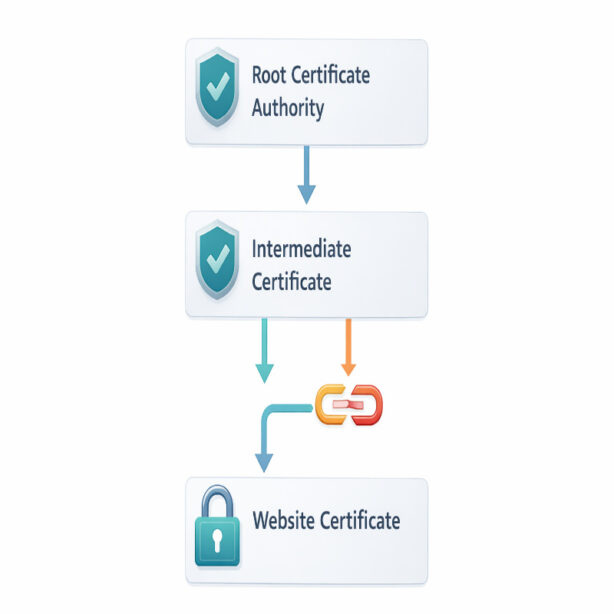
- The certificate chain is incomplete because intermediate certificates are missing.
- The certificate is self-signed and the browser does not trust it.
- The certificate was installed incorrectly on the server.
- The certificate authority is not recognized by the device or browser.
- The certificate was issued for the wrong hostname or an incomplete set of hostnames.
- The server is presenting an old certificate after renewal.
That list is not especially glamorous, I know, but it is useful because it turns a vague “SSL problem” into something more specific. Once you know the category, the fix becomes much easier to pin down.
Common SSL certificate error messages
Browsers do not always use the same labels, and that can make the topic feel more confusing than it really is. Underneath the wording, though, the patterns are pretty consistent.
NET::ERR_CERT_DATE_INVALID
This usually means the certificate is expired or not yet valid. It can also appear if the user’s device clock is wrong, which is a strange little twist because the certificate may actually be fine while the local machine is not.
NET::ERR_CERT_COMMON_NAME_INVALID
This error appears when the certificate does not match the domain name in the browser address bar. For example, the certificate may be valid for the root domain but not the www version, or valid for one subdomain but not another.
NET::ERR_CERT_AUTHORITY_INVALID
This means the certificate was not issued by a trusted certificate authority, or the issuing authority is not recognized by the browser or operating system. Self-signed certificates often trigger this warning unless they have been manually trusted in a controlled environment.
SEC_ERROR_UNKNOWN_ISSUER
Firefox commonly shows this when it does not trust the issuer of the certificate. That may point to a self-signed certificate, a private CA, or a chain problem that prevents Firefox from validating the certificate path correctly.
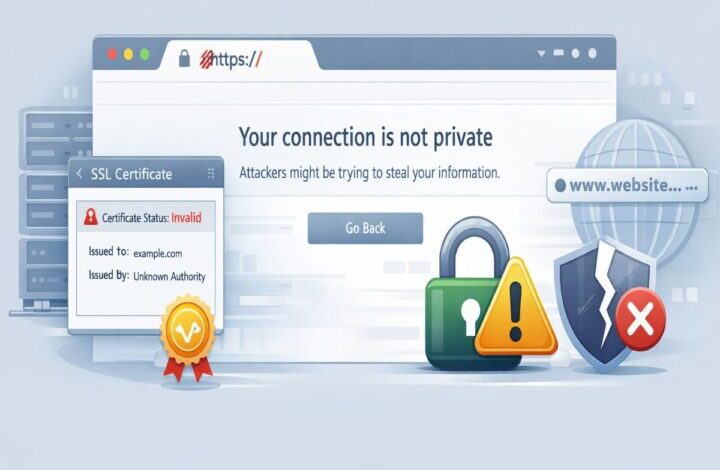
Your connection is not private
This is one of Chrome’s more general certificate warnings. It can appear for several certificate-related reasons, including expiration, mismatch, incomplete trust chain, or an invalid certificate authority. It is broad, yes, but still useful as a sign that the browser has paused because it cannot verify the site safely.
Some of these overlap with broader browser connection failures, which is why the bigger err_ssl_protocol_error topic matters too. But when the problem is clearly tied to certificate trust, this guide is the better starting point.
Who needs to care about SSL certificate errors
There are really three audiences here, and each one looks at the problem differently.
- Visitors want to know whether it is safe to proceed and whether they can fix the problem themselves.
- Site owners want the warning gone before trust, leads, sales, and rankings take damage.
- Developers and IT teams want to identify the exact failure point so they can correct the certificate setup properly.
This distinction matters because the right fix depends on who you are. A visitor should not be editing web server settings. A site owner should not assume clearing cookies will solve a broken certificate chain. It sounds obvious, but in live incidents people blur those lines all the time.
How certificates are supposed to work
Before we get into diagnosis, it helps to understand the basics. When you visit an HTTPS website, the server presents a digital certificate to the browser. That certificate says, in effect, “I am this domain, and this trusted certificate authority vouches for me.”
The browser then checks a few things:
- Is the certificate still within its valid date range?
- Does the certificate cover the exact domain being requested?
- Was the certificate issued by a trusted authority?
- Is the certificate chain complete?
- Has anything in the trust path been revoked, replaced, or misconfigured?
If those checks pass, the secure connection can proceed. If not, the browser raises a warning. In some cases it lets the user continue with a risk notice. In other cases, especially on strict modern browsers, it blocks the connection much more aggressively.
The most common certificate problems
Expired certificates
This is still the classic failure. Every certificate has a defined validity period, and once that period ends, browsers stop trusting it. Renewing the certificate is the obvious fix, but the awkward part is that renewal alone is not always enough. The renewed certificate also has to be installed properly on the server and, where relevant, at the CDN or load balancer layer.
It is surprisingly common for a team to renew a certificate successfully and still leave the old one live somewhere in the stack. Then users keep seeing warnings, and everyone swears the renewal was done. Technically, they are not wrong. It just was not fully deployed.
Domain mismatch
A certificate must match the exact hostname the browser is visiting. If users access www.example.com but the certificate only covers example.com, the browser sees a mismatch and throws an error.
This can happen with root domains, subdomains, staging environments, and poorly planned redirects. It also appears when a certificate was issued before a new hostname was added to the site architecture. Wildcard certificates can reduce this problem in some cases, but they do not solve everything and still need to be planned carefully.
Incomplete certificate chain
A browser does not just trust the site certificate on its own. It typically expects a full path from the site certificate through one or more intermediate certificates back to a trusted root authority. If the server omits an intermediate certificate, some browsers and devices may fail validation.
This is one of those maddening issues because the site may work on one device and fail on another. That inconsistency can make people think the problem is random when it is actually a chain installation issue.
Self-signed certificates
Self-signed certificates are not automatically evil, but they are not trusted by public browsers unless the device or environment has been configured to trust them. They are common in local development, internal tools, staging servers, and private systems.
For a public website, though, a self-signed certificate is usually the wrong choice. Visitors will see a trust warning because the browser has no recognized third-party authority confirming that the certificate should be trusted.
Wrong certificate installed
Sometimes the certificate is valid, current, and trusted, just not for that server. This can happen after manual deployments, hosting migrations, server template reuse, or copy-paste mistakes across multiple domains.
It sounds like an obvious error, and maybe it is, but it still happens more often than people admit. A busy admin handling several environments can install the wrong certificate and not notice until users report a warning.
How to tell whether the problem is on your side
If you are a visitor rather than the site owner, do a few quick checks before assuming the website is broken beyond repair.
- Try another browser.
- Try another device.
- Switch from Wi-Fi to mobile data.
- Check your device date, time, and time zone.
- See whether the same certificate warning appears on other secure websites.
If only one website fails across multiple browsers and devices, the certificate problem is probably on that website’s side. If many secure sites fail on your device, the issue may be local, such as incorrect system time, antivirus HTTPS interception, or a network-level trust problem.
If the broader symptoms look more like a general browser failure than a direct certificate warning, our article on Chrome HTTPS errors can help sort out the browser-specific side.
What users should do when they see certificate warnings
For ordinary users, the safest default is simple: do not continue unless you trust the website and understand the context. A certificate warning on a banking site, email service, payment page, or login form is not something to brush aside casually.
Here are the basic steps worth trying:
- Check that the device date and time are correct.
- Try the site in another browser.
- Disable VPN or antivirus HTTPS scanning temporarily as a test.
- Switch networks.
- Retry later if you suspect a temporary server issue.
If the warning persists only on one site, there is a fair chance the site owner needs to fix the certificate setup. In that case, the best move may simply be to wait or contact support rather than forcing the connection.

How site owners should diagnose SSL certificate errors
If this is your site, start with external validation before touching the server config. That order matters. You want to confirm what the outside world sees first, then compare that with what you believe is installed internally.
Run an SSL test on the live domain
Use a trusted SSL/TLS testing service to inspect the public domain. Check the certificate dates, hostname coverage, chain completeness, supported protocol versions, and any trust issues reported by the scanner.
Pay attention to:
- The exact certificate being served.
- The hostname or SANs it covers.
- Whether the chain is complete.
- Whether the server is still presenting an older certificate.
- Any mismatch between edge infrastructure and origin server behavior.
This gives you a solid baseline. Without it, you can waste a lot of time troubleshooting the wrong layer.
Inspect the certificate details manually
Look at the certificate subject, issuer, expiration date, SAN entries, and chain information. Confirm that the certificate actually includes every hostname users reach, including common variants like root domain, www subdomain, and any live subdomains that matter.
If you recently renewed the certificate, compare the installed certificate with the expected renewal. Sometimes the renewal happened but the old file paths, old virtual host reference, or cached CDN certificate is still being served.
Check the full chain installation
Make sure the site certificate and intermediate certificates are installed in the correct order and format for your server. Apache, Nginx, load balancers, hosting panels, and CDNs all have slightly different expectations here, and the details matter.
If the chain is incomplete, some users may still connect while others fail. That partial success is not proof that the setup is healthy. It is often the sign that it is only healthy on some devices.
Verify private key alignment
The certificate must match the private key configured on the server. If the wrong private key is paired with the certificate, the secure setup can fail or behave unpredictably.
This is one of those less common but higher-friction problems. When it happens, it tends to waste hours because the certificate file can look perfectly fine on the surface.
How hosting, CDNs, and proxies complicate certificate errors
Modern websites often have more than one HTTPS layer. A user may connect securely to a CDN, reverse proxy, or load balancer, while that service then connects separately to the origin server. If those layers are out of sync, certificate errors can surface in confusing ways.
Common examples include:
- The CDN has a valid edge certificate, but the origin certificate is expired.
- The proxy expects strict HTTPS to the origin, but the origin server is misconfigured.
- The domain was added to the CDN, but the certificate does not yet cover every hostname.
- A recent certificate update was applied on the origin but not at the edge.
This is where certificate issues start to overlap with more general TLS handshake errors. The certificate may be only one piece of a broader trust and connection problem.
Apache and Nginx certificate mistakes
On Apache and Nginx, the most common issues are not mysterious. They are usually file path problems, incomplete chain files, wrong virtual host setup, or old protocol directives sitting quietly in the config.
Check for:
- The correct certificate file path.
- The correct private key file path.
- The correct full chain or bundle file.
- The right HTTPS virtual host or server block.
- Port 443 listening properly.
- No duplicate or conflicting SSL directives.
And, importantly, test the configuration before restarting the service. That sounds basic because it is basic, but under pressure people skip the basics first.
Certificate errors after renewal
A certificate renewal should be routine. In real life, it is often the moment things go sideways. The certificate may renew correctly, but users still see errors because an old copy is cached somewhere, the server still points to the previous file, or the chain bundle was not updated.
If you have renewed but the error remains, check the following:
- The live certificate serial number matches the renewed certificate.
- The new certificate is installed on every relevant server.
- The load balancer or CDN also has the updated certificate if needed.
- The full chain file was refreshed along with the site certificate.
- The server was reloaded after installation.
This is one of the most common post-renewal traps, and it tends to create false confidence because teams assume “renewed” automatically means “fixed.” It does not.
Wildcard and SAN certificate issues
Wildcard certificates and SAN certificates are useful, but they also create room for assumptions. A wildcard certificate can cover many subdomains, but not always every hostname pattern people imagine. SAN certificates can include multiple domains, but only if those names were actually included when issued.
If you are managing a growing site or multiple related services, review the hostname map carefully. Do not assume the certificate covers a domain just because it feels related. Browsers are not interested in what feels close enough.
SSL certificate errors on staging and localhost
Development environments are a special case. Localhost, staging domains, preview deployments, and internal dashboards often use self-signed certificates, private certificate authorities, or temporary certificates that public browsers do not trust automatically.
That is acceptable in controlled internal environments, but it still needs to be handled properly. If a staging subdomain is publicly shared with clients, testers, or non-technical stakeholders, a certificate warning immediately looks careless, even if the environment is “just staging.” And, honestly, that perception matters.
For local work, trust the local certificate properly at the OS level if needed. For staging, use real certificates on real hostnames whenever possible. It saves confusion later and keeps testing closer to production reality.
How SSL certificate errors affect SEO, trust, and conversions
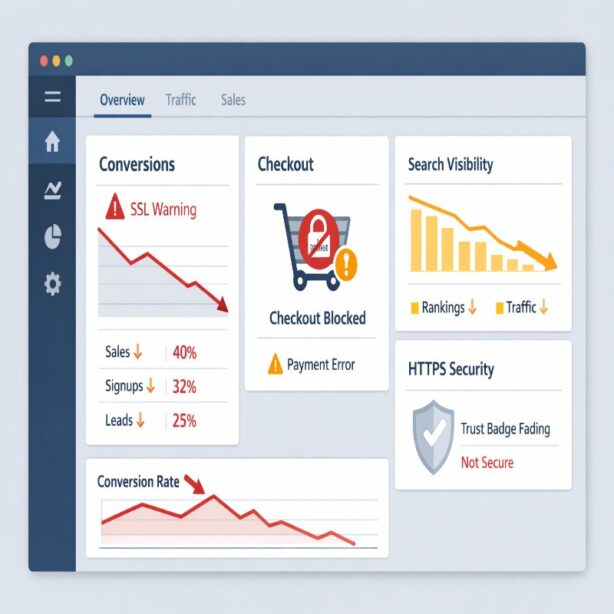
Certificate errors are not just a browser nuisance. If users cannot load secure pages, conversions can fall fast, especially on checkout pages, lead forms, login screens, and account portals. Trust drops almost instantly when a browser warns that a connection may not be private.
There is also an SEO angle. Search engines rely on stable, secure access to pages. If certificate problems block crawling or create recurring access failures, indexing and visibility can suffer. The ranking impact may not be the first thing you notice, but it is rarely the only consequence.
In practical terms, the user trust damage is often immediate, while the SEO damage unfolds more gradually. That uneven timing can make teams underestimate the seriousness of the issue at first.
How to prevent SSL certificate errors
Good certificate hygiene is mostly about process. Not exciting, perhaps, but very effective.
- Use automatic certificate renewal wherever appropriate.
- Monitor expiration dates before they become urgent.
- Document which domains and subdomains each certificate covers.
- Keep CDN, proxy, and origin certificate settings aligned.
- Test every certificate deployment from the public internet.
- Review staging and production separately.
- Audit server configs after migrations and platform changes.
If your site is important enough to care about, and most commercial sites are, certificate monitoring should not depend on a human remembering to check it. That is not a strategy. That is a hope.
Common questions about SSL certificate errors
Are SSL certificate errors always dangerous?
Not always in the dramatic sense, but they should always be taken seriously. Sometimes the cause is harmless, like a wrong system clock or a staging environment using a self-signed certificate. On a public website, though, the warning still signals a trust failure that should be resolved.
Can a valid certificate still produce a browser warning?
Yes. A certificate can be valid in isolation but still cause a warning if it does not match the hostname, if the chain is incomplete, if the wrong certificate is being served, or if the device does not trust the issuing authority.
Do certificate errors and err_ssl_protocol_error mean the same thing?
Not exactly. Certificate errors are one major cause of broader secure connection failures, but not the only one. For the bigger picture, including protocol and browser-level issues, see the full err_ssl_protocol_error article.
Should visitors click through certificate warnings?
Usually no, especially on sites involving passwords, payments, or personal information. Proceed only if you fully trust the environment and understand why the warning is appearing.
What is the fastest way for site owners to diagnose a certificate issue?
Start with an external SSL test, inspect the live certificate details, confirm hostname coverage, and verify the full chain. That sequence usually reveals the real problem faster than going straight into server files blindly.
Final thoughts on SSL certificate errors
SSL certificate errors are really trust errors. The browser is not being difficult for the sake of it. It is telling you that the website has failed one of the checks required for a secure, verifiable HTTPS connection.
For users, that usually means pause, verify, and avoid pushing through casually. For site owners, it means diagnosing the live certificate, the hostname coverage, the chain, and the deployment path carefully rather than guessing. And for anyone building a technical content hub, SSL certificate errors are one of the most useful supporting topics around the broader err_ssl_protocol_error conversation because they answer a very specific, very common layer of the problem.