Echo Show 15 Setup: Placement, Privacy, Wi‑Fi
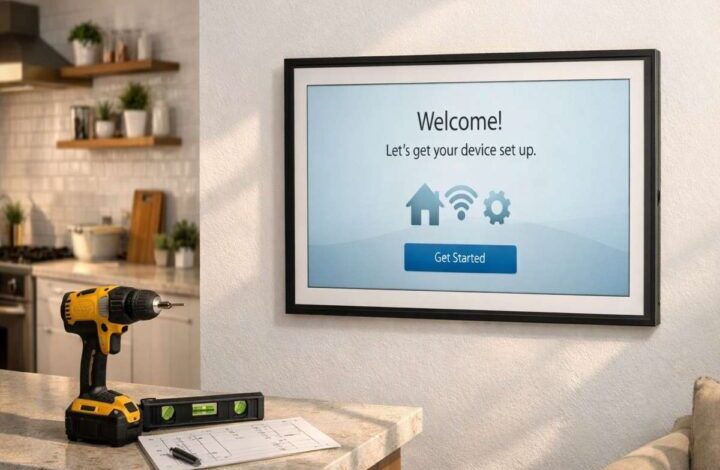
Setting up the Echo Show 15 setup is a little different from setting up, say, a normal smart speaker. It’s not just “plug it in and talk.” This thing has a screen you’ll see all day, and it lives in shared space, and that changes the decisions you’ll want to make early.
This article is a practical walkthrough for the second-generation Echo Show 15 (2024). It focuses on three areas that tend to decide whether you’ll love it in a month: where you put it, how you handle privacy controls, and how you avoid Wi‑Fi issues that make everything feel slower than it should.
If you’re starting from scratch and want the big-picture view first, my main echo show 15 guide gives you the full “dashboard vs TV” perspective. Here, we’ll stay focused on setup and the first-day choices that actually stick.
Before you mount anything: decide what job it has
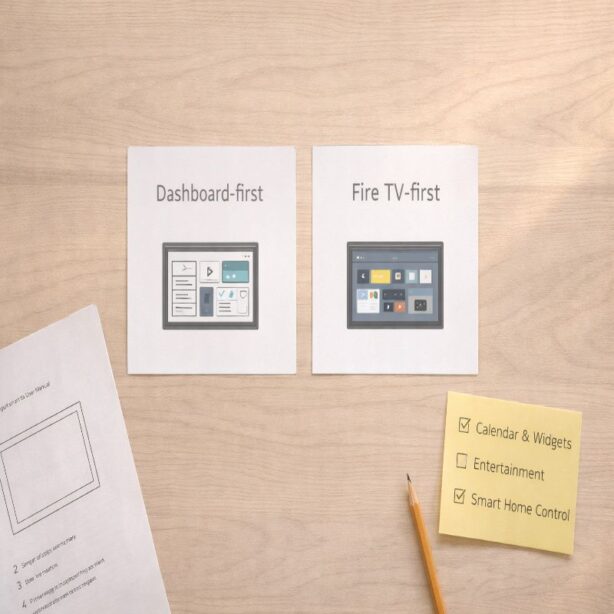
I know it sounds a bit philosophical for a setup guide, but it matters. The Echo Show 15 can be a kitchen TV, a family calendar, a smart-home hub, or a mix. The only problem is that it behaves differently depending on which role you prioritize.
So take 30 seconds and pick a default mode:
- Dashboard-first: widgets, lists, smart-home controls, glanceable info.
- Fire TV-first: streaming and video become the “idle state.”
You can absolutely change your mind later. Most people do. But having a default makes the next steps easier.
Placement: wall mount vs countertop (the real tradeoffs)
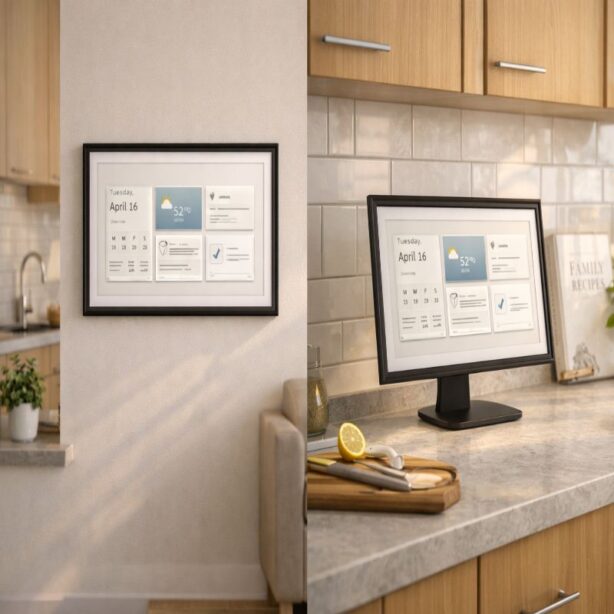
The Echo Show 15 is designed to be wall-mounted like a picture frame, but a countertop setup can make sense too. The best choice usually comes down to two things: viewing distance and how often you expect to touch the screen.
Wall mount: best for “glanceable” use
Wall mount is the cleanest experience if you want the Echo Show 15 to behave like a home dashboard. From across the room, you can see the calendar, the weather, and a few key smart-home controls without walking up to it.
Wall mounting also helps with something nobody puts on the box: it keeps the device out of the “counter chaos” zone. If your kitchen counters are anything like mine on a normal day, this alone can be the difference between “we use it constantly” and “we forget it exists.”
Countertop: best for touch, calls, and close-up tasks
Countertop placement can be better if you’re going to tap frequently, follow recipes up close, or use the camera for video calls. It’s more interactive, and it feels less like you’re trying to operate a screen across the room.
The downside is subtle: countertop setups sometimes drift into being “just another screen,” especially if Fire TV becomes the default. If you feel that happening, it’s worth revisiting your widget layout later. The best Echo Show 15 widgets guide is helpful for building a calmer dashboard that still gets used.
Height, glare, and the “can I read it?” test
Wherever you place it, do a quick reality test before you commit:
- Stand where you’ll normally be (stove, sink, couch, desk) and check if you can read the screen comfortably.
- Look for glare from windows and overhead lights; a slight angle change can fix a lot.
- Make sure it’s not right next to a loud appliance if you rely on voice commands.
This is boring advice, I know. But it prevents the kind of slow annoyance that builds up over weeks.
Power and network: set it up so it feels fast
The Echo Show 15 (2nd Gen, 2024) supports Wi‑Fi 6E (802.11ax). In a busy home, that can help with smoother performance, especially if you have a modern tri-band router and a lot of devices competing for bandwidth.
Still, Wi‑Fi 6E won’t save a weak signal. If the device is going on a wall far from your router, plan for that now rather than troubleshooting later.
Wi‑Fi checklist (quick, practical)
- If you can, place the Echo Show 15 where it has stable signal, not just where it looks best.
- Avoid placing it behind large metal appliances or inside enclosed cabinets.
- If streaming is a priority, test a few minutes of video after setup. If it buffers, you’ll feel it every day.
Privacy controls: do this on day one (seriously)
Putting a camera-enabled screen in a kitchen or living room can feel… a little weird at first. Even if you personally don’t mind, someone else in the home might, and that friction shows up in small ways: people avoiding the room, asking you to unplug it, or just never using video calling.
The Echo Show 15 includes two privacy features that are worth treating as part of normal use: a built-in camera shutter and a physical mic/camera-off button. Amazon’s own user guidance describes these as ways to cover the camera with the shutter and electronically disconnect the camera and microphones with the button.
A privacy-first setup pattern that keeps peace
This is what I’d do if the device is in a shared space:
- Start with the shutter closed by default.
- Only open it when you are actively using video calling.
- Use the mic/camera-off button when you want the room to feel “off the record.”
It’s not about being dramatic. It’s about making the device feel like something you control, not something you tolerate.
For a quick reference on privacy controls straight from a user guide-style page (including the shutter and mic/camera-off button), this is a good supporting resource: Amazon Echo Show 15 User Guide.
First-day personalization: make it usable immediately
The temptation is to leave everything on defaults and “figure it out later.” That’s also how devices quietly become background clutter. So, on day one, I’d do a lightweight version of personalization—just enough to make the screen feel purposeful.
Set up the home screen in under 10 minutes
A simple starting point:
- Add a calendar view that the household will actually trust.
- Add a to-do list or shopping list (pick one; don’t duplicate).
- Add a few smart-home favorites (lights, fan, thermostat—keep it tight).
- Turn on a photo rotation so the screen feels calm when idle.
If you want to go deeper, especially on what’s worth pinning and what tends to become visual noise, the best Echo Show 15 widgets article is designed for that exact moment when you think, “Okay, but what do I actually put on this screen?”
Fire TV setup: make the remote your friend
The newer Echo Show 15 includes the Fire TV experience, which is great—until you try to use it like a phone screen. Touch can work, but it’s not always the smoothest way to navigate video apps.
If you plan to use Fire TV regularly, get comfortable with the remote workflow. Amazon has guidance on pairing a Fire TV remote with Echo Show 15, and it’s worth doing early rather than when you’re hungry and trying to start a cooking video.
Also, a small habit that helps keep the device useful: after you finish watching something, return to the home screen so the dashboard stays “alive.” If you don’t, Fire TV can become the default state, and the Echo Show 15 slowly stops being a dashboard at all.
If you want the broader context on balancing dashboard use and Fire TV use (and whether it’s even a good fit for your space), jump back to the main echo show 15 guide.
Troubleshooting setup issues (the common ones)
“It’s not hearing me”
First, check the physical mic/camera-off button. It’s easy to bump during setup. Next, consider placement: mounting close to loud appliances or echo-y corners can make voice pickup feel inconsistent.
“It feels slow or buffers”
This is often Wi‑Fi placement, not the device itself. If possible, test the signal where it’s mounted before you permanently commit. If you’re using Wi‑Fi 6E (802.11ax), you’ll typically get the most benefit when your router supports it and the signal is strong.
“The screen feels busy”
Remove widgets until it feels calm. Then add one back only when you miss it. A screen you can read from a distance beats a screen that can theoretically do everything.
Final setup check: the “does it fit our life?” moment
After setup, give it one full day of normal life. A real day. Let it handle timers, show the calendar, run a quick routine, and play a bit of Fire TV. You’ll learn more from that than from an hour of tweaking.
If you get to the end of the day and think, “This is helpful, but I’m not using the dashboard,” that’s your cue to revisit widgets. If you think, “The dashboard is great, but Fire TV feels clunky,” focus on the remote workflow. These are solvable, but only if you notice the pattern early.
And if you want the big-picture guide again—what the device is, what it isn’t, and who it’s actually for—here’s the pillar page: echo show 15.