
Echo Show 15: A Real-World Guide to Setup & Use
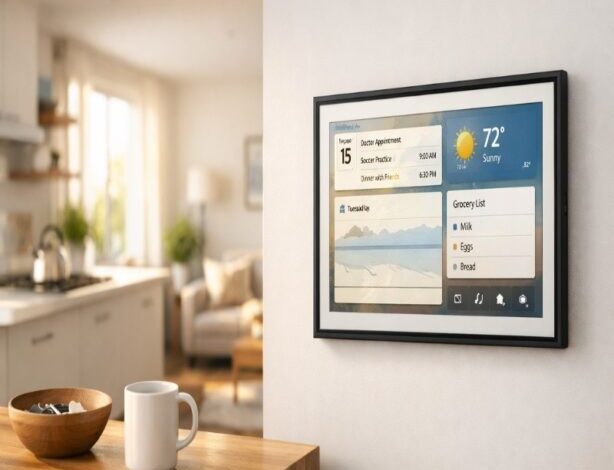
The echo show 15 is one of those devices that can feel a little confusing at first. Is it a kitchen TV? A family calendar? A smart-home hub? I think the honest answer is “yes,” and that’s also why people either love it or return it after a week.
This guide is for the version most people mean today: the second-generation Echo Show 15 (2024). It keeps the big 15.6-inch 1080p “picture frame” screen idea, but leans harder into built-in Fire TV, faster performance, and smarter-home hub support like Zigbee plus Matter and Thread border router capability. It also adds a 13MP wide-angle camera with a physical shutter, which matters more than you’d expect once you place a screen in a shared space.
I’m going to walk through how it actually fits into daily life—setup decisions, widgets that don’t become visual clutter, Fire TV habits that work, and the privacy settings you’ll want to touch right away. And yes, I’ll point you to deeper posts along the way, because some topics (like widgets) deserve their own room to breathe.
What the Echo Show 15 is (and what it isn’t)
At its best, the Echo Show 15 is a “shared screen” for the household: a glanceable dashboard that can also play video, run timers, show your Ring feed, and handle quick Alexa tasks. The default experience is built around a customizable home screen with widgets, and the 2024 model includes Fire TV built in from the start—so entertainment is not an afterthought anymore.
At its worst, it’s a nice screen that you never quite personalize. If you leave everything on defaults, it can feel like it’s constantly trying to guess what you want (sometimes it guesses wrong), and you’ll wonder why you didn’t just use a tablet. The device only feels “worth it” once you decide what role it plays in your home.
One quick reality check: this isn’t meant to replace a great TV speaker setup. Reviews note the device is improved, but audio still won’t satisfy people who care a lot about sound. If your goal is “movie night,” you’ll probably want a different plan.
Setting up the echo show 15 (the way you’ll actually use it)
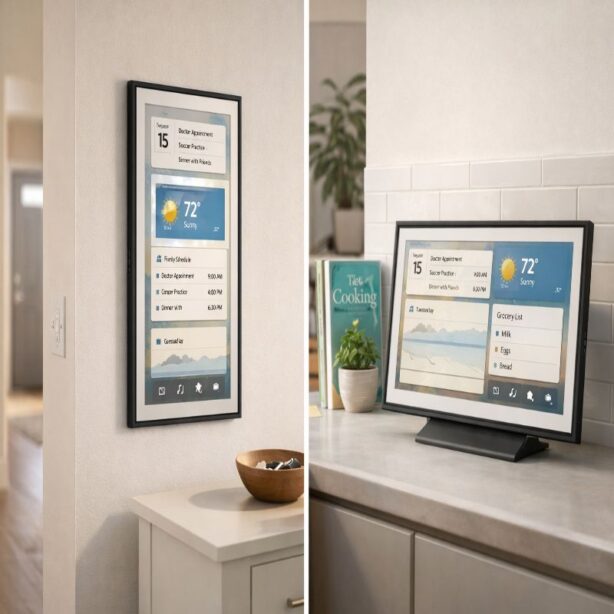
Let’s make setup practical. The Echo Show 15 can be wall-mounted or used on a countertop with a stand (often sold separately), and that single choice changes everything—how often you touch it, how far away you stand, whether it’s mostly “glanceable” or “interactive.”
Wall mount vs countertop: choose a primary behavior
Wall mount usually makes the most sense if you want it to function like a family dashboard—calendar, weather, chores, smart-home controls—always visible and easy to glance at. It also keeps it out of the “counter chaos” zone, which is honestly where good intentions go to die.
Countertop can be better if you want to tap more, use it for video calls, follow recipes up close, or move it between rooms. But it can also drift into becoming “just another screen,” and that’s when people stop using the widget dashboard and only open Fire TV.
If you want a step-by-step walkthrough with a quick checklist (mounting orientation, first-day settings, and the small stuff people forget), I wrote a dedicated guide here: Echo Show 15 setup.
Wi-Fi and performance: don’t sabotage it early
The 2024 Echo Show 15 supports Wi‑Fi 6E (802.11ax) in addition to standard dual-band Wi‑Fi, and that’s helpful in busy homes where multiple devices compete for airtime. It doesn’t magically fix bad internet, but it can reduce the “why is this lagging?” moments when you’re streaming or pulling up camera feeds.
If your router is older, that’s fine—just make sure the device is in a spot with stable signal. A big screen that buffers is oddly more irritating than a small screen that buffers. I don’t know why, but it’s true.
Privacy controls: do this before you get comfortable
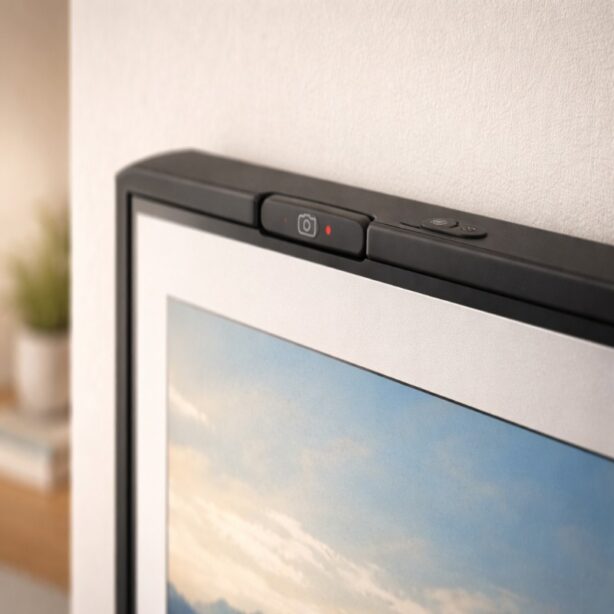
The Echo Show 15 includes a built-in camera shutter, plus a physical microphone/camera on/off button. If you’re placing it in a kitchen or living area, I’d use those controls deliberately—especially at first—until everyone in the home feels okay with it being there.
From Amazon’s user guidance: you can cover the camera with the shutter, and you can turn the camera and mics off with the mic/camera button. The point isn’t paranoia; it’s reducing friction so nobody feels like the device is “watching” the room.
Small tip: I like to start with the shutter closed by default. Then I open it only when I’m actually using video calling. That habit sounds a little fussy, but it makes the device feel more like a tool and less like a presence.
Widgets and the home screen: where the Echo Show 15 earns its keep
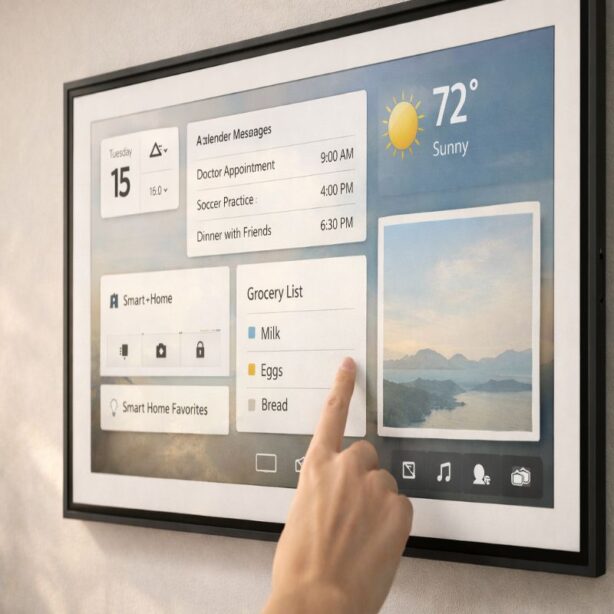
I think this is the most important section in the whole article, and also the one people skip. The Echo Show 15 is designed around customizable widgets, and the “aha” moment is realizing the home screen is the product—not just a launcher for apps.
echo show 15 widgets I’d start with
If you’re starting from scratch, pick a simple set you’ll actually look at:
1) Calendar (one shared view everyone trusts)
2) To‑dos or shopping list (the one that matches your household’s behavior)
3) Smart-home favorites (a few lights/fans, not every device you own)
4) A photo frame rotation (so the screen feels calm when idle)
The best widget setup is not the most complete one. It’s the one that’s legible from a distance, and a little boring in a good way.
If you want specific widget recommendations and a few “dashboard recipes” (kitchen, family, home office), this is where to go next: best Echo Show 15 widgets.
A quick note on clutter (because it sneaks up on you)
It’s tempting to build a home screen like a control room. I’ve done it. It looks impressive for two days. Then it becomes visual noise, and you stop noticing anything on it.
My approach is to remove a widget any time it makes me think “I’ll use that someday.” The Echo Show 15 is good at being present, so only put things on the screen that deserve that privilege.
Fire TV on Echo Show 15: the good, the slightly awkward, and the fix
The second-gen Echo Show 15 ships with a Fire TV interface built in, and that’s a real shift in how the device behaves day to day. It’s easier to treat it like a small, always-available TV—news in the morning, a cooking video while you prep, a show while you fold laundry.
But there’s a mild contradiction here: the same “TV-ness” that makes it more fun can also make it less useful as a dashboard. If Fire TV becomes the default screen you leave on, you’ll use fewer widgets, fewer lists, fewer routines—basically fewer of the things that make this device different.
Touch vs remote: pick one as your default
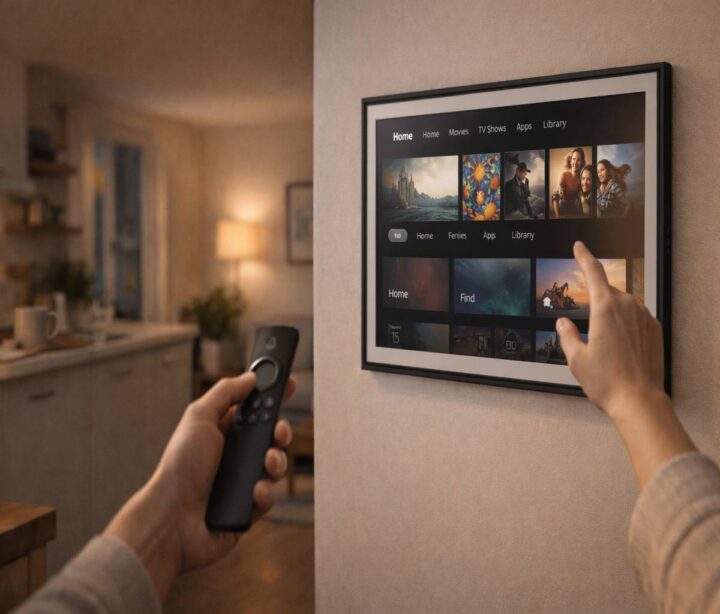
Amazon includes an Alexa Voice Remote with the newer Echo Show 15, and it’s honestly the smoother way to navigate Fire TV. Touch works, but it can feel like you’re poking at a wall-mounted tablet—because that’s basically what you’re doing.
If you like the idea of Fire TV but don’t want it to take over, here’s a habit that helps: use Fire TV intentionally (a show, a recipe video, a timer-based cooking session), then return to the home screen afterward. It sounds silly to “train” yourself, but it changes how the device feels in the room.
Smart home hub basics (Zigbee, Matter, Thread) without the headache
The Echo Show 15 (2024) can act as a smart-home hub with Zigbee support, and it also supports Matter and works as a Thread border router. That means, in plain terms, it can help connect and control compatible smart devices more directly—sometimes without needing an extra standalone hub.
If your eyes glazed over just now, that’s normal. Here’s the practical version: if you’re building (or rebuilding) a smart home, the Echo Show 15 can be a solid “center point,” especially when you want simple voice control plus a screen for device status. It won’t make every smart device perfect, but it can reduce how many separate bridges you need.
One caution: smart-home control on a screen is only great when it’s quick. Favor a small set of favorite devices on your home screen, and don’t bury basics behind multiple taps. In real homes, nobody wants a control panel that feels like work.
Using the Echo Show 15 for real routines
Routines are where the Echo Show 15 starts feeling like it’s quietly doing its job in the background. Not in a “wow” way. More like: “Oh, right, that’s convenient.”
Morning dashboard routine (low effort, high payoff)
Try a routine that runs when you say something simple like “Good morning.” Then have it show your calendar, weather, and perhaps one news briefing. Keep it short. You’re not producing a morning show; you’re trying to get out the door.
Kitchen routine (where the big screen makes sense)
In a kitchen, the Echo Show 15 shines with timers, quick conversions, step-by-step recipes, and a little background video through Fire TV. The important thing is visibility: you can see it from across the room, and that’s a small quality-of-life upgrade you notice repeatedly.
Home office routine (surprisingly useful)
In a home office, the device can act like a status board: next meeting, to-do list, and a simple smart-home widget row (lights, temperature). I used to think this was overkill. Then I tried it for a week, and I didn’t love it… but I didn’t want to give it up either. That’s sort of the Echo Show 15 experience in a nutshell.
Video calling and the camera: helpful, but set expectations
The newer Echo Show 15 includes a 13MP wide-angle camera with a shutter, and that upgrade makes video calling more viable than earlier models for many people. Still, video calls on a shared screen come with social friction: someone is cooking, someone is walking through the background, someone doesn’t want to be on camera.
This is where the physical shutter matter’s. It lets you be clear about when the camera is available. If you’re in a household where privacy is a recurring tension, I’d treat that shutter like a normal part of your routine, not a special feature you forget exists.
Troubleshooting: the issues people actually run into
I’m going to keep this part grounded, because most troubleshooting content becomes a messy list of everything that could happen. Here are the common patterns.
“It’s not hearing me”
First check the obvious: is the mic/camera button turned off? The Echo Show 15 has a physical control for that. Then consider placement—wall mounting near noisy appliances can be surprisingly impactful.
“The home screen feels busy”
Remove widgets until the screen feels calm. Add one widget back at a time only when you miss it. If you want inspiration, the Echo Show 15 widgets guide will give you a few starting layouts that don’t turn into clutter.
“It turned into a TV and now nobody uses the dashboard”
This is more behavior than settings. Decide what you want the device to be most of the time. If it’s a dashboard, return to the home screen after watching something. If it’s a kitchen TV, accept that the dashboard will be secondary—and that’s okay.
Echo Show 15 vs Echo Show 21: should you go bigger?
Amazon also introduced the Echo Show 21 as an even larger smart display option, and the idea is simple: more screen for shared spaces, still with the “home organization + Fire TV” approach. If you’re mounting it in a bigger open-plan area, the larger size can make the UI easier to see from farther away.
But bigger isn’t automatically better. If your space is tight, or if you already worry about “too many screens,” the 15-inch can be the sweet spot. It’s easier to live with. Less of a statement. More like a digital picture frame that happens to do a lot.
If you’re deciding between them, I’d read this comparison next: Echo Show 15 vs Echo Show 21.
Is the Echo Show 15 worth it?
I think the Echo Show 15 is worth it for people who want a shared home screen and are willing to spend a little time making it theirs. Not hours. Just enough to choose a role (dashboard first or TV first), pick a few widgets, and set privacy defaults that feel comfortable.
If you want a screen that behaves like a helpful household object—calendar, lists, smart-home control, and yes, some Fire TV when you want it—the echo show 15 can be a really good fit. And if you want to keep going, the linked guides on Echo Show 15 setup and Echo Show 15 widgets will help you get past the “new device” phase into something that actually sticks.